Shopify vs WooCommerce: An Honest Comparison for Growing Stores
A fair, numbers-first comparison of Shopify and WooCommerce: total cost of ownership, payments, SEO, speed, maintenance, B2B and migration, plus a decision guide for your store type.
Shopify vs WooCommerce comes down to one trade: Shopify is a hosted platform you rent, where the company runs the servers, security and checkout for a monthly fee, while WooCommerce is a free plugin you install on your own WordPress site, where you own everything and you are responsible for everything. Shopify wins on speed to launch and low maintenance. WooCommerce wins on control, content and freedom from platform fees.
For most growing stores, the honest answer is this: choose Shopify if you want to spend your time selling rather than managing software, and choose WooCommerce if your store is content-heavy, needs unusual product or checkout logic, or you already have a well-run WordPress site and someone to maintain it. The rest of this guide shows you how to make that call with real numbers, how each platform handles design, apps, payments, SEO, performance, security and B2B, how to migrate between them, and a decision guide by store type.
Shopify vs WooCommerce: the short answer
If you only read one section, read this one. Here is where each platform is genuinely stronger, based on what we see building and maintaining stores for clients.
Shopify is usually the better choice when:
- You want to launch quickly and never think about hosting, server updates or security patches.
- Your team is small and nobody on it is technical.
- You sell standard physical products with a few options each (size, color, material).
- You sell in person as well as online and want one inventory system.
- You expect sudden traffic spikes (a launch, a TV mention, a holiday rush) and cannot afford downtime.
WooCommerce is usually the better choice when:
- Content is a big part of how you sell: guides, recipes, tutorials, a large blog.
- You need product logic that does not fit a template: complex configurators, bookings, memberships, unusual pricing rules.
- You want to choose your own payment processor and negotiate rates without a platform penalty.
- You already run WordPress, and you have a developer or maintenance partner on hand.
- You want full ownership of your code and data, with no platform able to change terms on you.
Neither is "better." They are different business models. Shopify sells you a managed service. WooCommerce gives you software and lets you assemble the service yourself.
How each platform works: hosted vs self-hosted
Almost every difference in this comparison traces back to one architectural fact. Understand it and the rest of the decision gets much easier.
Shopify: a hosted platform you rent
Shopify is software as a service. You sign up, pick a plan, choose a theme and start adding products. Shopify runs the servers, the database, the checkout, the SSL certificate and the security. Its pricing page lists unlimited web hosting, a custom domain and a free SSL certificate as included on every plan.
The trade-off is that you work inside Shopify's rules. You can change your theme, add apps and (on higher plans) customize more of the checkout, but you cannot change how the core platform works. Some URL paths are fixed, some limits are set by Shopify, and if Shopify changes its pricing or policies, you adapt.
WooCommerce: a self-hosted plugin you own
WooCommerce is a free, open source plugin for WordPress. You need a WordPress site first, which means you need hosting, a domain and someone to set it up. Then you install WooCommerce, a theme and whatever extensions you need.
You own every file and every row in the database. You can change anything, host anywhere and move hosts whenever you like. But you are also the one responsible for keeping WordPress, WooCommerce, the theme and every plugin updated, backed up and secure. WooCommerce publishes server requirements for current versions, including WordPress 6.9 or greater, PHP 8.3 or greater and a WordPress memory limit of 256 MB or more, and your host has to meet them.
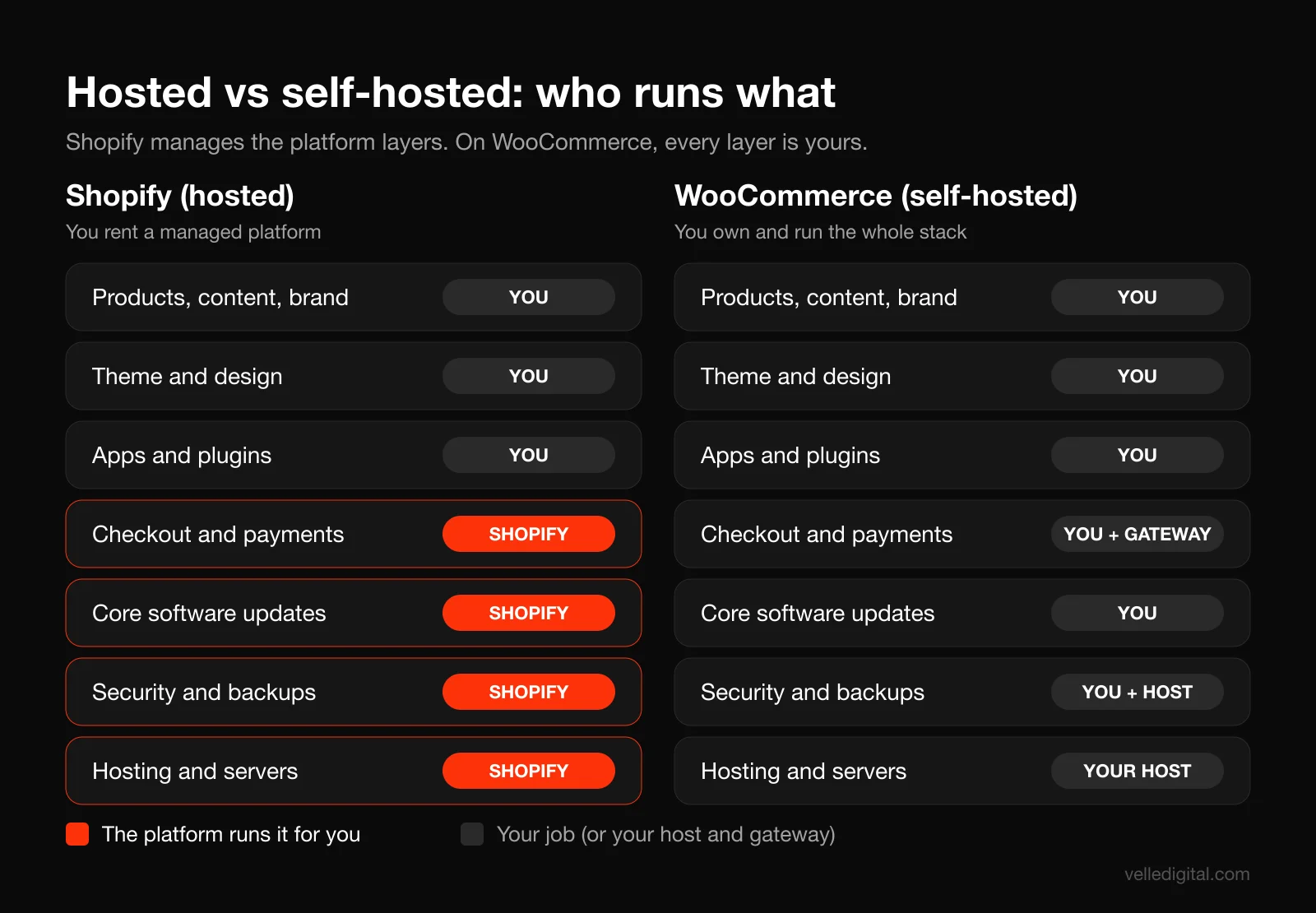
What this means day to day
Think of it as renting a fully serviced shop in a mall versus buying a building. In the mall, the landlord fixes the roof and the lights, but you pay rent and follow the mall's rules. In your own building, you can knock down walls, but when the furnace breaks at 2 a.m., it is your problem.
A quick self-test: if the phrase "update your plugins and check the staging site first" makes you nervous, weigh that heavily. It is not a reason to rule out WooCommerce, but it means maintenance has to be a line in your budget rather than a hope.
Shopify vs WooCommerce cost: total cost of ownership
The most common mistake we see is comparing Shopify's monthly plan price with "WooCommerce is free." Both are misleading. The real comparison is total cost of ownership over a year or three: platform fees, hosting, themes, apps or extensions, payment processing, maintenance and the build itself.
What Shopify charges (verified October 2026)
These are the prices shown on Shopify's Canadian pricing page when we checked in October 2026. Prices differ by country and currency, Shopify runs regular introductory promotions, and plans change, so confirm on the page before you budget.
- Basic: CA$49 a month billed monthly, or CA$37 a month billed yearly. Online card rate with Shopify Payments from 2.8% plus 30 cents.
- Grow: CA$132 a month billed monthly, or CA$99 a month billed yearly. Online card rate from 2.6% plus 30 cents.
- Advanced: CA$517 a month billed monthly, or CA$389 a month billed yearly. Online card rate from 2.4% plus 30 cents.
- Plus: starts at CA$3,400 a month. Online card rate from 2.15% plus 30 cents.
The same page lists a third-party transaction fee if you use a payment provider other than Shopify Payments: 2% on Basic, 1% on Grow, 0.6% on Advanced and 0.2% on Plus. That fee is charged on top of whatever your outside processor charges you. It is the single most important number in this whole comparison for some stores, and we come back to it in the payments section.
On top of the plan, most Shopify stores pay for some combination of a premium theme (a one-time purchase), monthly app subscriptions and occasionally developer time for custom theme work.
What WooCommerce costs
The WooCommerce plugin is free. WooCommerce's own pricing page describes the core platform as free with no monthly subscription and no revenue share, and gives its own estimates for the other categories: hosting at roughly $25 to $350 a month for most stores, and paid extensions at roughly $29 to $299 a year each.
Your real WooCommerce costs fall into these categories:
- Hosting: shared, managed WordPress or cloud. Cheap shared hosting is a false economy for a store; checkout pages cannot be fully cached and need real server resources.
- Domain: a small annual fee, same as Shopify.
- Theme: free or a one-time purchase, sometimes with an annual renewal for updates.
- Extensions: most paid extensions are annual subscriptions. If you stop renewing, they usually keep working but stop getting updates and support, which is a security risk.
- Payment processing: whatever your gateway charges. With WooPayments, the published fee schedule for Canadian merchants lists cards at 2.90% plus 30 cents, with an extra 1% for international cards and 2% for currency conversion.
- Maintenance: your time, or a paid maintenance plan, for updates, backups, monitoring and fixing conflicts.
- Security tools: a web application firewall, malware scanning and offsite backups if your host does not include them.
Step by step: build your own cost estimate
Do this exercise with your own numbers before you decide. It takes about 30 minutes and it will settle most arguments.
- Write down last year's online revenue and order count (or a realistic forecast if you are new). Divide revenue by orders to get your average order value.
- Estimate payment processing on each platform. Multiply revenue by the percentage rate, then add the fixed per-order fee times your order count. Use the rate for the plan or gateway you would actually use.
- Add the platform fee. For Shopify, use the plan price times 12 (yearly billing if you will commit). For WooCommerce, this is zero.
- Add hosting. Zero extra for Shopify. For WooCommerce, get a real quote from a managed WordPress host sized for your traffic.
- List every feature you need and price it. Reviews, subscriptions, product bundles, wholesale pricing, email marketing, shipping labels, search, filters. For each one, find the Shopify app and the WooCommerce extension that does it, and write down the monthly or annual cost.
- Add maintenance. For WooCommerce, either a monthly maintenance plan or an honest estimate of your own hours times what your time is worth. For Shopify, budget a smaller amount for occasional theme and app fixes.
- Add the build or migration as a one-time line, then compare year one and year three totals separately. Year one includes the build; year three shows the running cost.
If the two totals land within about 10 to 15 percent of each other, cost should not be your deciding factor. Choose on fit, team and risk instead.
Worked example: a store doing CA$250,000 a year
The numbers below are a hypothetical example to show the method, not a quote. Plan prices and card rates come from the official pages linked above; everything labelled "assumption" is ours, and yours will differ.
Example store: CA$250,000 in annual online revenue, 2,500 orders, so a CA$100 average order value. Domestic cards only, to keep it simple.
Shopify Grow, billed yearly, using Shopify Payments:
- Plan: CA$99 times 12 = CA$1,188
- Card processing: 2.6% of CA$250,000 = CA$6,500, plus 30 cents times 2,500 orders = CA$750, total CA$7,250
- Apps (assumption): CA$150 a month for reviews, subscriptions, email and search = CA$1,800
- Premium theme (assumption): CA$400 one-time
- Year one running total: about CA$10,638
WooCommerce with WooPayments:
- Platform: CA$0
- Card processing: 2.9% of CA$250,000 = CA$7,250, plus 30 cents times 2,500 = CA$750, total CA$8,000
- Managed hosting (assumption): CA$100 a month = CA$1,200
- Paid extensions (assumption): five at CA$150 a year = CA$750
- Theme (assumption): CA$100
- Maintenance plan (assumption): CA$150 a month = CA$1,800
- Year one running total: about CA$11,850
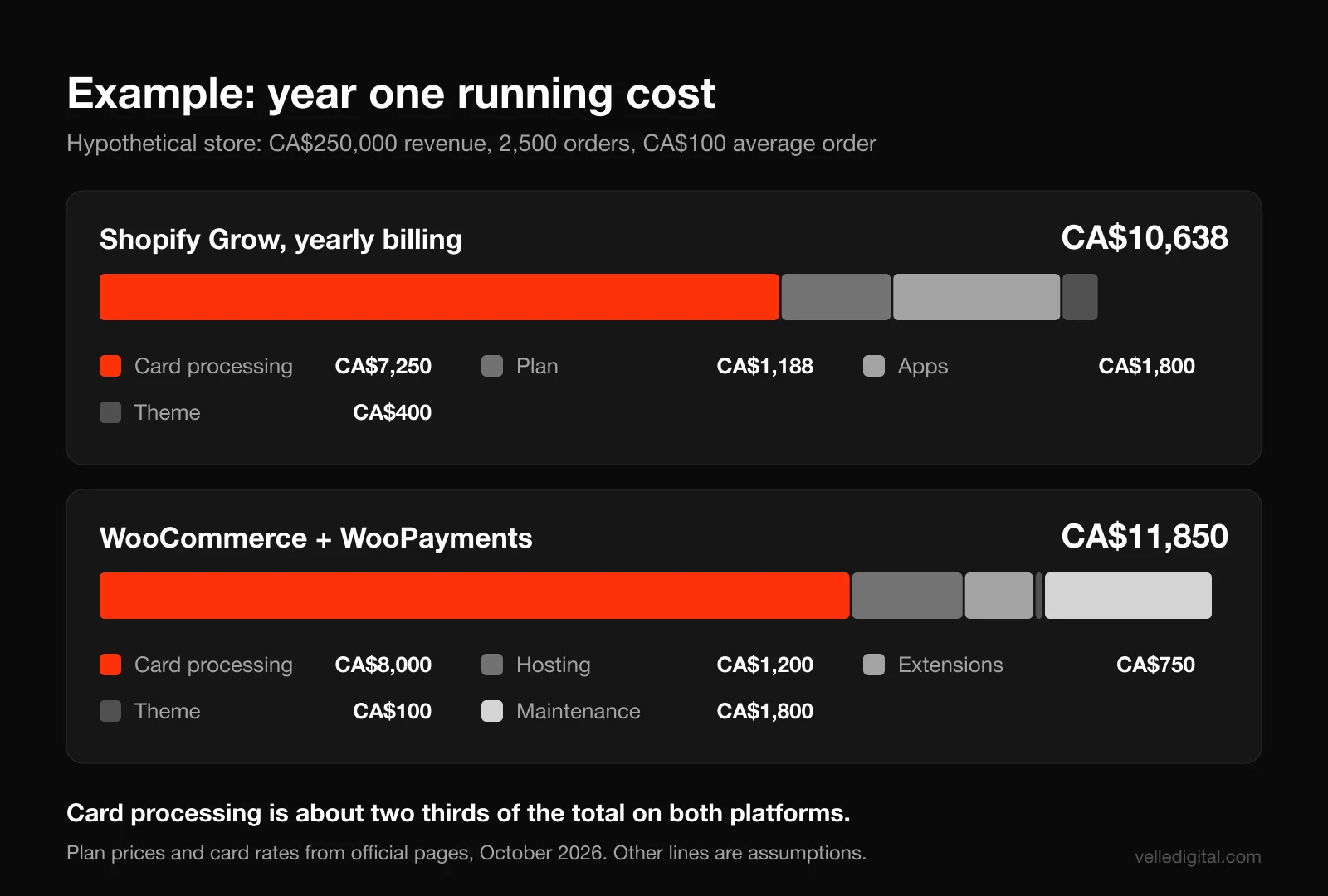
Two things jump out. First, payment processing is by far the largest cost on both platforms, roughly two thirds or more of the total. The platform fee everyone argues about is a small slice. Second, the totals are close. Small changes in assumptions flip the winner: do your own WooCommerce maintenance and it gets cheaper; add three more paid Shopify apps and Shopify gets more expensive.
Now change one assumption. Say this store wants to keep using an outside processor it already has on Shopify Grow. The 1% third-party fee adds CA$2,500 a year (1% of CA$250,000) on top of that processor's own charges. That one decision can be worth more than the entire plan cost. If you want a different processor, either use Shopify Payments, move up a plan where the fee is lower, or seriously consider WooCommerce, which charges no fee for using any gateway.
A smaller store, same method
Example store two (also hypothetical): CA$40,000 a year, 400 orders, CA$100 average order.
- Shopify Basic, billed yearly: CA$444 plan, CA$1,240 card processing (2.8% plus 30 cents), CA$600 apps (assumption: CA$50 a month). About CA$2,284.
- WooCommerce: CA$1,280 card processing (2.9% plus 30 cents), CA$360 hosting (assumption: CA$30 a month), CA$300 extensions (assumption). About CA$1,940, plus your own time for maintenance.
At this size, WooCommerce looks cheaper on paper, but only if you do the maintenance yourself and value your time at zero. For a solo founder, four hours a month of updates and troubleshooting is often the most expensive line, even though it never shows up on an invoice.
Cost mistakes to avoid
- Ignoring the build. A custom WooCommerce build and a custom Shopify theme can both cost far more than a year of fees. Our website cost guide breaks down what drives build pricing.
- Forgetting renewals. Shopify apps bill monthly forever. WooCommerce extensions renew yearly. Both creep up as you add features.
- Using cheap hosting for WooCommerce. Saving CA$50 a month on hosting is a bad trade if checkout slows down during your biggest sale of the year.
- Ignoring international card fees. If a meaningful share of your customers pay with foreign cards, both platforms charge more. Check the international rate on each fee page.
Ease of use: who can run the store day to day
Shopify is easier for most people. You get a single admin built for selling: products, orders, customers, discounts, analytics and shipping all live in one place, designed by one company. There is nothing to install and nothing to update. A new staff member can usually process orders on day one.
WooCommerce adds commerce to WordPress, so you are working in the WordPress dashboard with WooCommerce menus layered on top. If you already know WordPress, it feels natural. If you do not, there is more to learn: themes, the block editor, plugin settings pages that each look a little different, and the occasional notice asking you to update something.
How to test ease of use yourself
- Start a Shopify trial and spin up a WooCommerce test site (many managed WordPress hosts offer a staging or trial environment).
- Add the same three products to each, including one with variants (sizes and colors) and one with a sale price.
- Create a discount code for 15% off a single collection or category.
- Place a test order, refund half of it, and print a packing slip.
- Hand both to the person who will run the store daily and ask which one they would rather use every morning.
That last step matters more than anything in this article. The best platform is the one your team will actually keep up to date.
Design flexibility and themes
Both platforms can look excellent. The difference is how far you can go and what it costs to get there.
Shopify design
Shopify themes are built with Shopify's own templating language and its theme editor, which lets you rearrange sections and blocks on most pages without code. The current generation of themes is fast, mobile friendly and consistent. For most stores, a well-chosen theme plus good photography and copy gets you 90% of the way there.
Where you hit walls: some page structures are fixed, and deep changes to checkout are limited on lower plans. Shopify's pricing comparison lists checkout customization as "Limited" on Basic, Grow and Advanced, and a fully customizable checkout on Plus. If your brand experience depends on an unusual checkout, that matters.
WooCommerce design
WooCommerce runs on WordPress, so you can use any WordPress theme that supports WooCommerce, a block theme with the site editor, a page builder or a fully custom theme. A developer can change literally anything: product page layout, cart behavior, checkout fields, the order confirmation flow.
That freedom cuts both ways. Heavy page builders and bloated multipurpose themes are the most common reason we see slow WooCommerce stores. The flexibility is real, but it rewards disciplined choices.
Decision rule for design
- If a good theme with your brand applied is enough, both work; Shopify is less effort.
- If you need custom layouts on content pages and a rich blog, WooCommerce has the edge because WordPress is a content platform first.
- If you need a custom checkout and you are not ready for Shopify Plus pricing, WooCommerce is the realistic option.
- If your design depends on strong brand assets (logo, colors, photography), get those right before you pick a platform. No theme can fix a weak brand.
Apps and plugins: extending each platform
Neither platform does everything out of the box. Both rely on add-ons, and how those add-ons work is one of the biggest practical differences.
Shopify apps
Shopify apps are installed from the Shopify App Store. Most are hosted by the app developer and connect to your store through Shopify's APIs. That means installation is a click, apps rarely break your site outright, and Shopify reviews apps before listing them.
The downsides: most apps charge a monthly fee, so a store with ten apps can easily spend more on apps than on its plan. Some apps inject their own scripts into your storefront, which slows pages down. And when you uninstall an app, leftover code can remain in your theme.
WooCommerce extensions and plugins
WooCommerce extensions are WordPress plugins: code that runs on your own server. You can buy official extensions from the WooCommerce Marketplace or use any of the thousands of plugins on WordPress.org and elsewhere.
That gives you enormous choice and usually lower ongoing costs, because many extensions are annual licenses or free. But plugins run inside your site, so a poorly built one can slow down every page, conflict with another plugin, or open a security hole. Quality varies widely.
How to audit add-ons on either platform
- List every feature you need and mark each as "must have at launch" or "later."
- For each feature, find two or three options on each platform. Check the last update date, the number of reviews, and whether support responses look recent.
- Prefer native features where they exist. Every add-on is another bill, another dependency and another thing that can break.
- Test speed before and after installing anything that touches the storefront, using PageSpeed Insights or Lighthouse.
- Keep a simple register: add-on name, what it does, cost, renewal date and who owns the account. Review it every quarter and remove anything you no longer use.
Payments and transaction fees
Payments are where the two platforms differ most in philosophy, and where the most money is quietly won or lost.
Shopify Payments and the third-party fee
Shopify's built-in processor, Shopify Payments, is available in many countries and is tightly integrated: payouts, disputes and fraud analysis all live in the admin. If you use it, you pay only the card rate for your plan, with no extra transaction fee. The pricing page notes that built-in fraud analysis requires Shopify Payments, as do some other features.
If you use a different processor, you pay that processor's fees plus Shopify's third-party transaction fee (2%, 1%, 0.6% or 0.2% depending on your plan). For most small stores, the practical answer is simply to use Shopify Payments. For stores in regulated categories, stores that need a specific processor, or high-volume stores that have negotiated a better rate elsewhere, this fee is a real cost to model.
WooCommerce: any gateway, no penalty
WooCommerce lets you use WooPayments, Stripe, PayPal, Square or dozens of other gateways, and you can run more than one at a time. WooCommerce charges nothing extra for using any of them. Its pricing page explicitly positions this as a benefit: you can negotiate processor rates directly as your volume grows.
Read the fine print on whichever gateway you choose. The WooPayments fee page, for example, notes that transaction fees are not refunded to you when you refund customers, and lists a dispute fee for Canadian merchants. Most processors work similarly, on both platforms.
Payment decision rules
- If you are fine with Shopify Payments, the third-party fee does not apply and Shopify's processing is competitive.
- If you must use a specific outside processor (regulated products, existing merchant account, special terms), calculate the third-party fee for your plan before choosing Shopify.
- If you sell high volume and can negotiate rates, WooCommerce's freedom of gateway is worth real money. Model it.
- If you sell in person too, compare the in-person rates and hardware on each side; Shopify's POS is mature and its pricing page lists in-person rates by plan.
Shopify vs WooCommerce for SEO
Both platforms can rank well. In our experience, the platform matters far less than the work you put in: product copy, category pages, internal linking, page speed and earning links. Still, there are real differences.
What Shopify gives you
Shopify handles the technical basics automatically: an XML sitemap, canonical tags on most templates, editable page titles and meta descriptions, image alt text and SSL. Its SEO documentation covers editing the robots.txt.liquid file, submitting your sitemap and hiding pages from search engines.
The main limits are structural. Shopify uses fixed URL prefixes such as /products/ and /collections/, and its URL redirect documentation confirms you cannot redirect those fixed paths and can only redirect from broken URLs. You get up to 100,000 redirects on standard plans and up to 20,000,000 on Plus. For most stores, that is plenty. For a very large catalog with complex URL needs, it is a constraint.
What WooCommerce gives you
WooCommerce inherits WordPress's control: you set your own permalink structure, edit every template, and choose from mature SEO plugins that manage titles, descriptions, sitemaps, schema and redirects. Because WordPress is a publishing platform first, building out a content hub (buying guides, how-to articles, comparison pages) that links into products is natural.
The catch is that this control depends on configuration. A WooCommerce store with a slow host, a heavy theme and conflicting SEO plugins will underperform a clean Shopify store every time.
SEO steps that matter on either platform
- Write unique product and category descriptions. Do not paste manufacturer copy that appears on 200 other sites.
- Add product structured data. Google's product structured data documentation explains the price, availability and review properties that can make listings eligible for richer results. Most modern themes and SEO plugins output it; check it with Google's Rich Results Test.
- Design a clear category structure and link to it from your navigation. Google's ecommerce SEO guidance covers URL structure, pagination and how to help Google find your products.
- Handle out-of-stock and discontinued products deliberately. Keep temporarily unavailable products live; redirect permanently discontinued ones to the closest replacement.
- Control filtered and faceted URLs so you are not generating thousands of near-duplicate pages from color and size filters.
- Build supporting content that answers your buyers' questions and links to the right products.
If you are a local retailer with a storefront, add the steps in our local SEO guide. And if you would rather hand this to someone, our SEO services cover ecommerce stores on both platforms.
Performance and site speed
Speed affects both rankings and sales. Google's Core Web Vitals measure loading (Largest Contentful Paint), responsiveness (Interaction to Next Paint) and visual stability (Cumulative Layout Shift), with recommended thresholds of 2.5 seconds, 200 milliseconds and 0.1 respectively.
Shopify performance
Shopify serves stores from its own global infrastructure and content delivery network, so baseline server performance is strong and consistent, and it handles traffic spikes without you doing anything. Where Shopify stores get slow is the front end: heavy themes, oversized images and, above all, too many apps adding scripts to every page.
WooCommerce performance
WooCommerce performance depends almost entirely on your choices: hosting, theme, plugins and caching. A well-built WooCommerce store on good managed hosting can be very fast. A WooCommerce store on cheap shared hosting with a page builder and 40 plugins will struggle, especially at checkout, which cannot be fully cached.
WooCommerce has also made real platform improvements. Its High-Performance Order Storage feature moves orders out of the general WordPress posts tables into dedicated tables built for ecommerce queries. According to WooCommerce's developer docs, it became stable and enabled by default for new installations from WooCommerce 8.2 in October 2023. If you run an older store, check that it is enabled.
Performance checklist for either platform
- Compress and correctly size images; serve modern formats.
- Remove apps or plugins you do not use, and check what scripts each one adds.
- Limit fonts to two families and a few weights.
- Delay chat widgets, popups and review carousels until after the main content loads.
- Test product, collection and checkout pages on a mid-range Android phone, not just your laptop.
- For WooCommerce: managed hosting with server-level caching, an object cache and a current PHP version.
Speed is one part of conversion. Our ecommerce conversion rate guide walks through finding and fixing the other leaks between product page and purchase.
Security, maintenance and who gets the 2 a.m. call
This is where the hosted versus self-hosted difference matters most, and it is the factor owners most often underestimate.
Shopify security and maintenance
Shopify is responsible for the platform: servers, software updates, the checkout and the payment environment. You are responsible for your own account security (strong passwords, two-step authentication, careful staff permissions) and for the apps you choose to install. There is no "update WordPress" button because there is nothing for you to update.
That does not mean zero maintenance. Themes get updates you may want to apply, apps change, and someone should review staff accounts and app permissions a few times a year. But the risk of your store going down because of a software update you forgot is essentially gone.
WooCommerce security and maintenance
On WooCommerce, security is a shared job between your host and you. WordPress's own hardening guide covers keeping software updated, strong passwords, file permissions, database security, securing wp-admin, backups, logging and monitoring. All of it applies to a store, with higher stakes because you are handling customer data and orders.
On payments specifically, most modern gateways (including WooPayments) tokenize card data so it never touches your server, which greatly reduces your exposure. You are still responsible for everything else on the site.
A WooCommerce maintenance routine you can copy
- Weekly: check for WordPress, WooCommerce, theme and plugin updates; apply them on a staging copy first; test the cart and checkout; then apply to live.
- Weekly: confirm automatic backups ran and are stored offsite.
- Monthly: review admin users and remove anyone who no longer needs access; check uptime and error logs.
- Quarterly: delete unused plugins and themes, review PHP version support with your host, and restore a backup to a test environment to prove it works.
- Before every major sale: freeze updates a week ahead, and load test checkout if you expect a spike.
If that list looks like a part-time job, that is because it is one. Many WooCommerce owners hand it to a website maintenance plan so they can focus on selling.
Scaling and B2B: growing past your first plan
Both platforms run very large stores. The question is what it takes to get there.
Scaling on Shopify
Shopify scales by plan. Moving from Basic to Grow to Advanced adds staff accounts, lowers card rates and the third-party fee, and unlocks features like third-party calculated shipping rates. Shopify Plus adds a fully customizable checkout, unlimited staff accounts and more. The infrastructure scales automatically, so a big launch day is Shopify's problem, not yours.
The cost of scaling is predictable but stepped. At some revenue level, the lower card rates on a higher plan pay for the higher plan. Run the numbers each year using the same method from the cost section.
Scaling on WooCommerce
WooCommerce has no plan tiers. WooCommerce's pricing page states that the core includes unlimited products, orders and APIs. Scaling means scaling infrastructure: bigger or better hosting, caching layers, a tuned database, sometimes a dedicated search service. It is very doable, but it is engineering work, and you need someone who understands it.
B2B and wholesale
Shopify now has native B2B features on more than just Plus. Shopify's B2B help documentation says Shopify B2B is available on the Basic, Grow, Advanced and Plus plans, with features varying by plan. You set up business customers as companies and can personalize pricing, currency, products, payment terms and shipping methods for each. The pricing page lists up to 3 B2B catalogs on the lower plans and unlimited catalogs on Plus.
WooCommerce handles B2B through extensions and custom development: wholesale pricing, role-based catalogs, quote requests, net payment terms, tax exemptions and minimum order quantities. You can build almost any B2B workflow, including deep integration with an ERP or a custom portal, but you are assembling it rather than switching it on.
Decision rule for scaling
- If you expect fast growth and want infrastructure to be someone else's problem, Shopify.
- If you expect complex custom logic (unusual pricing, integrations, custom portals) more than raw traffic, WooCommerce or Shopify Plus, depending on budget.
- If B2B is a side channel next to retail, Shopify's built-in B2B features are often enough. If B2B is your main business with complex rules, scope both carefully.
Migrating between Shopify and WooCommerce
People move in both directions. Owners leave WooCommerce for Shopify to escape maintenance; owners leave Shopify for WooCommerce to escape fees or limits. Either way, a migration is a project with real SEO risk, and it deserves a plan.
What moves easily and what does not
Products, customers and historical orders can generally be moved with CSV exports, migration apps or custom scripts. Shopify's migration guide lists the options from least to most technical: copy and paste, CSV import, a migration app, hiring a Shopify Partner, or a custom solution using the Shopify API. It also has a WooCommerce-specific guide.
What does not move cleanly: your theme and design (you rebuild it), app or plugin functionality (you replace it), customer passwords (customers usually need to reset or reactivate accounts), and active subscriptions (these need careful handling with your payment processor).
Step 1: Inventory everything
List every product, category, page, blog post, redirect, app or plugin, integration, email flow and tracking script. Export a full list of your current URLs from your sitemap or a crawler, plus your top pages by traffic and revenue from analytics.
Step 2: Map every old URL to a new URL
This is the step that protects your search rankings. Build a spreadsheet: old URL in one column, new URL in the next. Moving to Shopify, products will live under /products/ and categories under /collections/, so almost every product URL will change. Google's guidance on site moves with URL changes explains why permanent server-side redirects from each old URL to its most relevant new URL matter.
Step 3: Rebuild features, not plugins
Do not look for a one-to-one replacement for every plugin. List the job each one did, then find the simplest way to do that job on the new platform. Migrations are the best chance you will get to cut add-on bloat.
Step 4: Migrate data to a staging store
Import products, customers and orders into the new store before launch. Check variants, images, prices, inventory, tax classes and SEO fields on a sample of products in every category.
Step 5: Recreate tracking and integrations
Reconnect analytics, ad pixels, conversion tracking, email marketing, accounting, shipping and your CRM. Place test orders and confirm each one shows up everywhere it should.
Step 6: Test like a customer
Run full test orders with real cards and refund them: discount codes, shipping to different regions, taxes, guest checkout, account creation, mobile and desktop.
Step 7: Launch and redirect
Point your domain, turn on the redirects, submit your new sitemap in Google Search Console, and crawl the old URL list to confirm every one redirects correctly in a single hop.
Step 8: Monitor for 60 to 90 days
Watch Search Console for crawl errors and indexing drops, watch analytics for traffic and conversion changes by page type, and fix broken redirects as they appear. A temporary dip in organic traffic after a migration is common; a lasting drop usually points to missing redirects or lost content.
If you are moving platforms as part of a bigger rebuild, our website redesign checklist covers the planning around a migration.
Decision guide: which platform fits your store type
Here is how we would advise common store types. Treat these as starting points, then run the cost exercise with your own numbers.
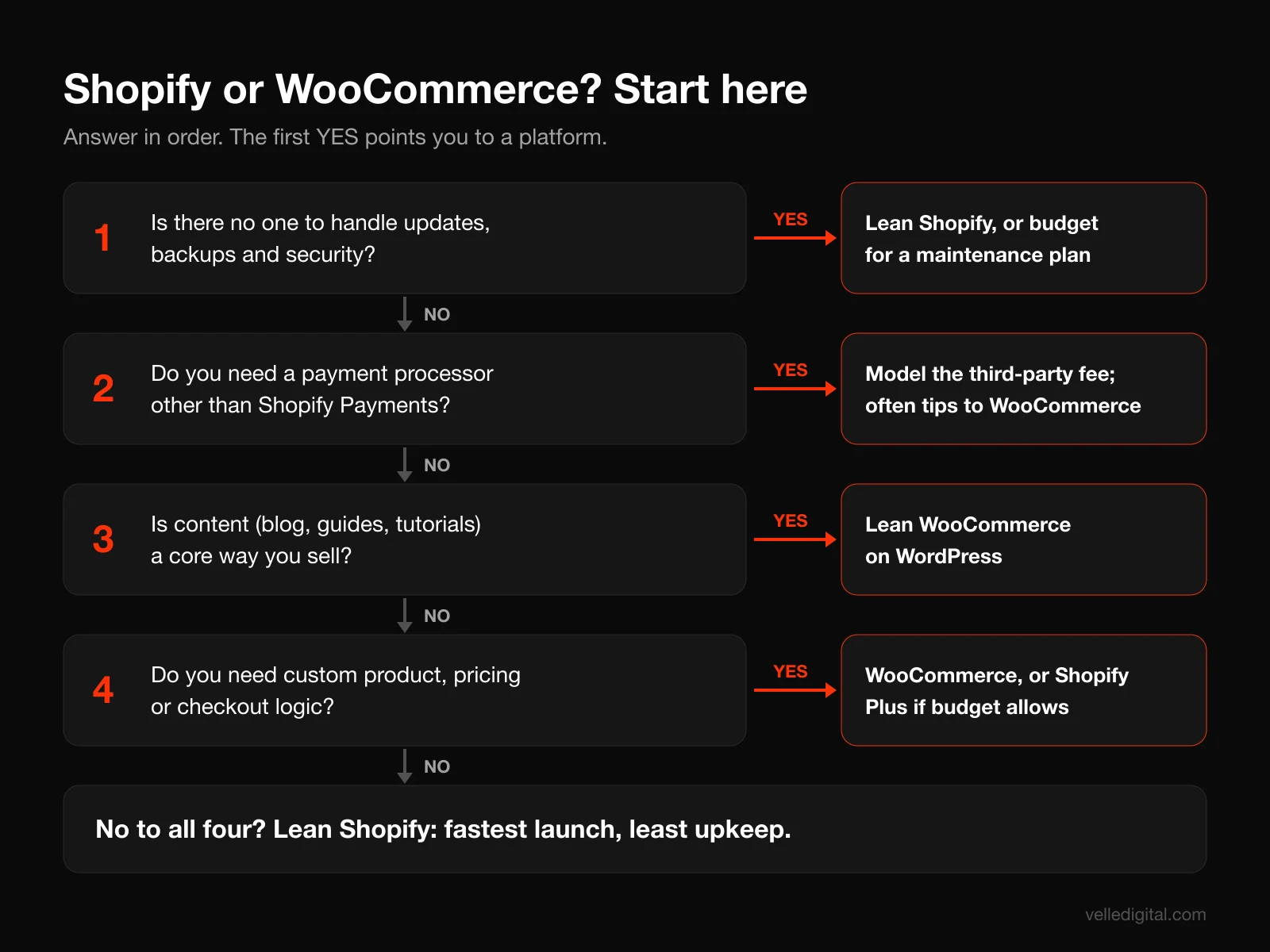
New store, first product line, small team
Lean Shopify. You need to prove demand, not manage servers. Start on Basic, use Shopify Payments, keep apps to a minimum and upgrade when the card rate savings justify it.
Content-led brand (recipes, tutorials, education, niche expertise)
Lean WooCommerce, especially if you already have a WordPress blog with traffic. Keeping content and commerce on one platform, with one domain and one set of templates, is a real advantage.
Retail store with a physical location
Lean Shopify. Unified online and in-person inventory with Shopify POS is hard to beat for a small team. WooCommerce can integrate with POS systems, but it is more assembly.
Store with complex products (configurators, custom quotes, bookings, rentals)
Lean WooCommerce, or a carefully scoped Shopify build with custom apps. If your product logic is the business, you want full control over it.
High-volume store with negotiated payment rates
Model both. Shopify Plus or Advanced lowers the third-party fee significantly; WooCommerce removes it entirely but adds infrastructure costs. The math decides this one.
Wholesale or B2B-first business
Scope both. Shopify's native B2B covers companies, catalogs and payment terms well. WooCommerce wins if you need unusual rules or deep ERP integration and have a developer.
Subscription or membership business
Either works. Compare the subscription app on Shopify with the subscription extension on WooCommerce, including fees, dunning (failed payment recovery) and how customers manage their plans. Note that Shopify requires Shopify Payments as your primary gateway for subscription products, according to its payments documentation.
Regulated products
Check processor rules first. If Shopify Payments will not accept your category, you will pay the third-party fee on Shopify. That often tips the balance toward WooCommerce with a specialist processor.
How to choose: a 7-step evaluation
If you are still on the fence, run this process. It turns a vague debate into a decision in a week.
Step 1: Write down your requirements
List what the store must do at launch and within 12 months: product types, variant counts, payment methods, shipping rules, taxes, integrations, B2B, subscriptions, languages and currencies. Mark each as must have or nice to have.
Step 2: Name who will run it
Write the name of the person who will update the site, process orders and handle technical problems. If there is no name for the technical part, either budget for a maintenance partner or lean Shopify.
Step 3: Run the cost model
Use the seven-step cost estimate above for year one and year three, with your own revenue and order numbers. Include the third-party fee if you need an outside processor on Shopify.
Step 4: Test the hard requirements
For each must-have requirement, prove it works on each platform: install the app or extension on a trial or staging site and try it. Do not trust a feature list.
Step 5: Check your exit
Ask how you would leave each platform in three years. On WooCommerce, you own the code and database. On Shopify, you can export products, customers and orders, but you rebuild the theme and replace apps. Neither is a trap, but know the cost.
Step 6: Get one outside opinion
Show your requirements and cost model to someone who has built on both. Ask them what you missed, not which platform they prefer.
Step 7: Decide and commit for at least two years
Switching platforms is expensive. Once you choose, invest in making that platform work well rather than wondering about the other one.
Common mistakes when choosing a platform
- Choosing on monthly price alone. Processing fees, apps and maintenance usually matter more.
- Choosing WooCommerce with no maintenance plan. In our experience, outdated plugins are the most common way small WordPress stores get into trouble.
- Choosing Shopify and installing 25 apps. You end up with a slow store and a large monthly bill.
- Ignoring the third-party fee. If you need an outside processor on Shopify, it can cost more than your plan.
- Assuming the platform will fix conversion. Moving platforms rarely fixes weak product pages, poor photos or a confusing offer.
- Skipping redirects on migration. This is how stores lose years of search rankings in a weekend.
- Letting a developer's preference decide. Ask why a platform fits your business, not which one they like to build on. We compare the broader version of this trade-off in our post on Next.js vs WordPress.
Shopify vs WooCommerce checklist
Use this before you commit.
- I know my annual revenue, order count and average order value (or a realistic forecast).
- I have priced card processing on both platforms using the official fee pages.
- I know whether I need a payment processor other than Shopify Payments, and what the third-party fee would cost.
- I have listed every app or extension I need, with its cost and renewal cycle.
- I have a real hosting quote if I am considering WooCommerce.
- I have named who will handle updates, backups and security.
- I have tested my hardest requirement on both platforms, not just read about it.
- I know how many products, variants and option types I need, and confirmed the platform supports them.
- I have a plan for SEO basics: unique copy, structured data, clean categories.
- If migrating, I have a complete URL map and redirect plan.
- I have compared year one and year three costs, not just month one.
- I have decided to commit for at least two years.
Frequently asked questions
Is Shopify or WooCommerce cheaper?
It depends on your volume, apps and who does maintenance. WooCommerce has no platform fee, but you pay for hosting, extensions and upkeep; Shopify charges a monthly plan but includes hosting and security. In our worked examples, payment processing was the largest cost on both, and the totals landed close together, so run the numbers with your own revenue.
Is WooCommerce really free?
The WooCommerce plugin is free and open source, and WooCommerce says it takes no revenue share. You still need hosting, a domain, usually a theme and some paid extensions, plus payment processing fees and maintenance time. "Free software" is not the same as "free store."
Which is better for SEO, Shopify or WooCommerce?
Both can rank well, and content, site structure and speed matter far more than the platform. WooCommerce gives more control over URLs and content because it runs on WordPress. Shopify handles the technical basics automatically but uses fixed URL paths like /products/ and /collections/.
Can I switch from WooCommerce to Shopify later (or the other way)?
Yes. Products, customers and orders can be moved with CSV files, migration apps or custom scripts, and Shopify publishes a guide for migrating from WooCommerce. You will rebuild your design and replace apps or plugins, and you need a complete redirect map to protect your search traffic.
Does Shopify charge transaction fees?
If you use Shopify Payments, you pay only your plan's card processing rate, with no extra transaction fee. If you use a third-party payment provider, Shopify adds a fee of 2% on Basic, 1% on Grow, 0.6% on Advanced or 0.2% on Plus, according to its pricing page in October 2026.
Is WooCommerce secure?
WooCommerce can be very secure, but security depends on you and your host. Keep WordPress, WooCommerce, themes and plugins updated, use strong passwords and two-step login, run offsite backups and choose a reputable host. Most security problems we see come from outdated plugins and weak admin passwords, not WooCommerce itself.
Which is better for a small business just starting out?
For most new stores with a small, non-technical team, Shopify is the faster, lower-risk start. WooCommerce makes sense if you already run WordPress, have content driving traffic, or have a developer and need custom functionality. Either way, start lean and add features only when you need them.
Need help choosing or building your store?
Choosing between Shopify and WooCommerce is easier with someone who has built and maintained both. If you would like a second opinion on your cost model, a migration plan or a new store build, our ecommerce team works on both platforms, and our website development services cover custom themes and integrations. Book a call and bring your numbers.