Website Redesign Checklist: Redesign Without Losing SEO or Leads
A step-by-step website redesign checklist that protects your rankings and leads: baselines, content inventory, URL mapping and 301 redirects, staging, form and tracking QA, launch day and the first 30 days.
A website redesign checklist is the list of steps that gets you from an old site to a new one without losing the search rankings, traffic and leads the old site was already producing. The short version: record a baseline before you touch anything, inventory every URL, decide what to keep, map every old URL to a new one with 301 redirects, rebuild on a staging site that search engines cannot index, test every form and tracking event, then launch with a checklist and watch Google Search Console closely for 30 days.
Most redesigns that go wrong fail because something invisible broke, not because the design is bad: a service page that ranked for years now returns a 404, a contact form sends leads to an inbox nobody checks, or a leftover noindex tag tells Google to drop the whole site. This guide walks you through the redesign in 14 steps, in the order we run them for clients, with templates, decision rules and the mistakes we see most often. You can follow it yourself, hand it to your developer, or use it to check the work of an agency you hired.
Do you need a redesign or a refresh?
Before you start a redesign, make sure you need one. A redesign is a big, risky project. A refresh is a smaller set of changes on top of the site you already have. Many owners who ask us for a redesign actually need a refresh, and the refresh gets them most of the benefit at a fraction of the cost and risk.
The Nielsen Norman Group makes the same point in their article on radical versus incremental redesign: drastic website changes are jarring for users and risky for business, and they recommend making incremental changes unless the data tells you a complete redesign is needed. We agree. A pretty new homepage is not a business reason.
Signs a refresh is enough
A refresh means you keep the same platform, the same URL structure and most of the same pages, and you improve what is on them. A refresh is usually the right call if:
- Your site loads reasonably fast and works on a phone, but looks dated.
- Your rankings and traffic are stable or growing.
- The problems you can name are about copy, photos, calls to action or a few weak pages.
- Your platform still gets updates and you can edit pages without calling a developer.
- Your brand has not changed in a meaningful way.
Typical refresh work: new photography, rewritten service pages, a stronger homepage hero, cleaner navigation and better forms. None of it changes URLs, so the SEO risk is low.
Signs you need a full redesign
A full redesign is justified when the foundation itself is the problem. Look for these signals:
- The platform is a dead end. It is unsupported, insecure, painfully slow, or so locked down that every change needs a developer.
- The site is slow or broken on mobile and the cause is the theme or builder, not a few heavy images.
- Your business changed. New services, new markets, a rebrand or a new positioning that the current structure cannot hold.
- Years of patches have made a mess. Navigation that grew by accident, duplicate pages, and visitors who cannot find what they need.
- Leads are flat or falling even though traffic is fine. That points at the site itself, not your marketing.
- You cannot measure anything. No reliable analytics, no conversion tracking, and no way to know which pages produce customers.
A quick decision rule
Score yourself honestly. If the problems are mostly about content and appearance, refresh. If the problems are about platform, structure, speed or measurement, redesign. If you cannot tell, run an audit first. Our step-by-step website audit checklist walks you through one in a day or two with free tools, and the findings usually make the decision for you.
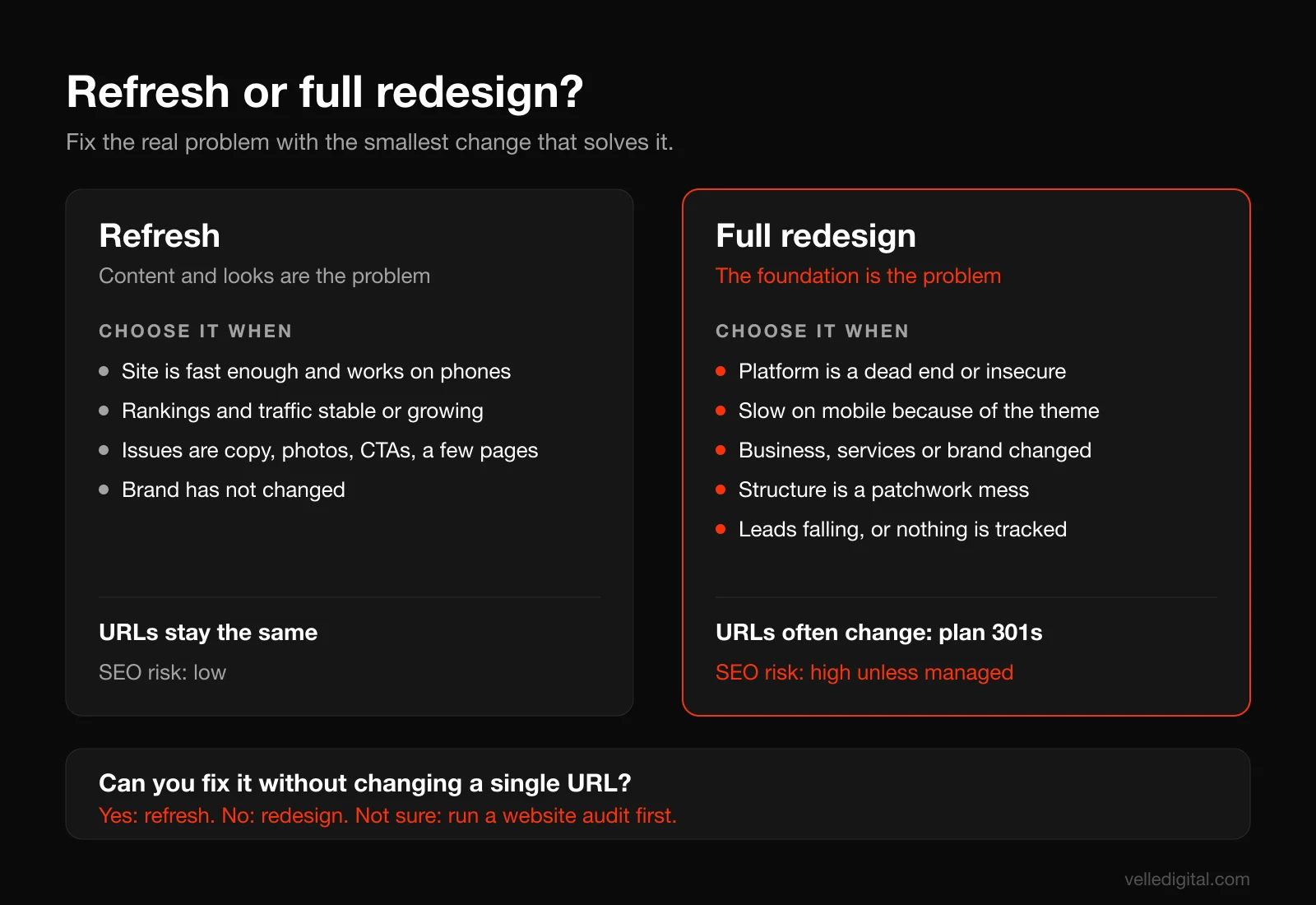
Rule of thumb: if you can fix the problem without changing a single URL, you probably do not need a redesign.
The website redesign checklist, step by step
A redesign puts four things at risk: rankings, the links other sites point at you, leads, and your ability to measure any of it. Steps 1 to 4 happen before any design work, steps 5 to 9 while the site is built, and steps 10 to 14 cover launch and the month after. The planning steps feel slow, but they are where most of the protection comes from.
Step 1: Set goals you can measure
Write down what the redesign is supposed to achieve, in numbers, before anyone opens a design tool. Without goals, the project drifts toward personal taste and you will have no way to judge success afterward.
Good redesign goals are specific, tied to revenue and measurable with tools you already have. For example:
- Increase quote requests from the website from an average of 40 a month to 55 a month within 90 days of launch.
- Keep organic search clicks within 10 percent of the pre-launch baseline in the first 60 days, then grow them.
- Bring mobile Largest Contentful Paint under 2.5 seconds on the five most visited templates.
- Let the office manager publish a new project page without a developer.
Bad goals sound like "look more modern" or "feel premium." Those are fine as design direction, but they are not goals. A redesign that looks modern and produces fewer leads is a failed redesign.
Also write down what is out of scope. A redesign is not the moment to also change your CRM, domain and service list unless you have to. Every extra change makes problems harder to diagnose after launch.
Step 2: Record a baseline before you change anything
You cannot prove the new site works unless you know how the old one performed. Pull these numbers and save them in a spreadsheet with the date. Use at least the last 12 months where you can, so you can account for seasonality.
From Google Search Console, using the Performance report:
- Total clicks and impressions by month.
- The top 50 pages by clicks, with their clicks, impressions and average position.
- The top 100 queries by clicks.
- Export the full list of pages that received at least one click in the last 12 months.
From Google Analytics 4 or whatever analytics you use:
- Sessions by channel (organic search, paid, direct, referral, social).
- Leads by source: form submissions, calls, bookings, purchases.
- Conversion rate by key landing page.
- Top landing pages by sessions.
From your business records:
- Leads and sales attributed to the website per month. Even a rough count from your CRM or inbox is better than nothing.
From PageSpeed Insights:
- Core Web Vitals for your homepage and your three most important service or product pages, on mobile.
Tip: if your tracking is broken today, fix the basics first and collect at least four weeks of clean data. A redesign launched without a baseline is a guess.
Step 3: Build a full content inventory
A content inventory is a spreadsheet of every URL on your current site. This is the most important document in the entire redesign, because it feeds your URL map and your redirect plan.
Collect URLs from several sources, because no single source finds everything:
- A crawl of your site. Use a crawler such as Screaming Frog (the free version handles up to 500 URLs) to list every page, image and file it can reach through links.
- Your XML sitemap. Usually at yourdomain.com/sitemap.xml or listed in your robots.txt file.
- Search Console. The Performance export from Step 2 shows every page that earned clicks, including old pages that are no longer linked from anywhere.
- Analytics. Export all landing pages from the last 12 months. This catches campaign landing pages and orphaned pages a crawler misses.
- Backlinks. Search Console's Links report shows your top linked pages. Any page with external links must be in the inventory.
- Your CMS. Export the list of published pages, posts, products and media files directly from the admin.
Combine everything into one sheet, remove duplicates and normalize the URLs (pick one version of trailing slashes, lowercase, and strip tracking parameters). For each URL, add these columns:
- URL
- Page type (home, service, location, product, blog post, landing page, utility)
- Organic clicks in the last 12 months
- Sessions in the last 12 months
- Leads or conversions attributed to the page
- Number of external linking sites
- Primary keyword or topic
- Action (keep, improve, merge, retire)
- New URL
- Notes
For a typical local service business, this sheet has 50 to 500 rows and takes a few hours. Do not let anyone tell you the new site "only needs 10 pages, so we don't need the old URLs." The old URLs are exactly what you need.
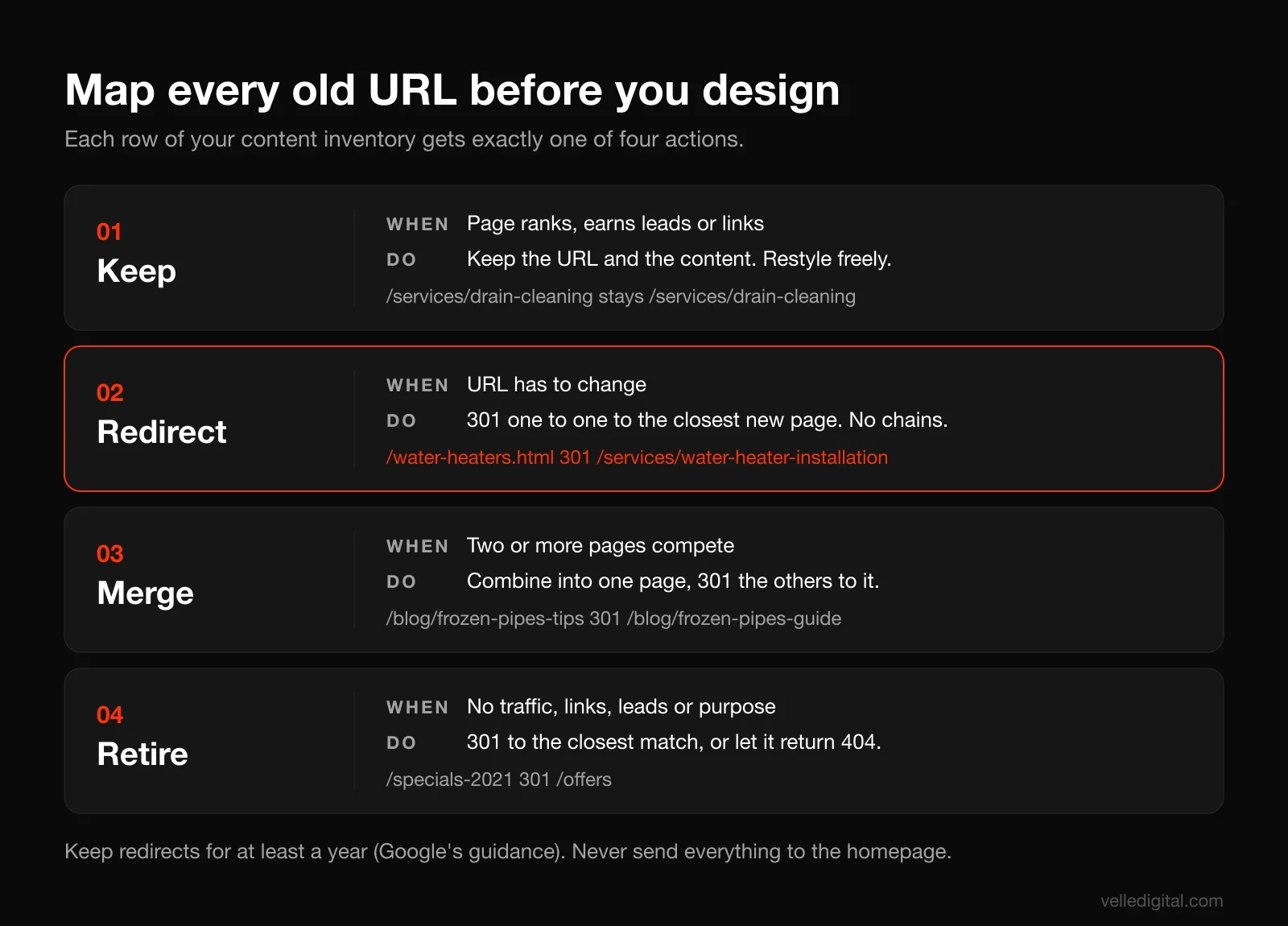
Step 4: Decide what to keep, improve, merge or retire
Now go row by row and decide what happens to each page. This is where you keep what ranks. Your new design can change everything about how a page looks, but if a page earns traffic and leads today, the content that earns them should survive.
Use these decision rules:
- Keep if the page gets meaningful organic clicks or leads and the content is still accurate. Keep the URL if you possibly can. Keep the core content, headings and topic. You can restyle it freely.
- Improve if the page targets a valuable topic but performs poorly, is thin, or is out of date. Keep the URL, rewrite the content.
- Merge if two or more pages cover the same topic and compete with each other. Combine the best parts into one page and 301 redirect the others to it.
- Retire if the page has no traffic, no links, no leads and no business purpose. Redirect it to the closest relevant page if one exists. If nothing relevant exists, let it return a 404 or 410.
A few rules from experience:
- Never delete a page with external links without redirecting it. That link value is hard to earn and easy to throw away.
- Do not cut content from pages that rank just because the designer wants more white space. If a 1,200 word service page ranks on page one, shrinking it to 150 words and three icons is one of the fastest ways to lose that ranking. Find a design that holds the content.
- Watch your page titles and H1s. If a page ranks for "furnace repair Edmonton" and its H1 says so, the new page should keep that topic front and center, even if the wording improves.
If your current site has strong pages that are poorly written, our website copywriting guide covers how to rewrite them without losing the substance search engines and buyers rely on.
Step 5: Plan the new site structure and URLs
With the inventory sorted, design the new structure: navigation, page hierarchy and URL patterns. Start from what your buyers need to find, then check it against what already ranks.
Our rules for URLs in a redesign:
- Keep existing URLs whenever you can. The safest redirect is the one you never need. If /services/roof-repair ranks, keep /services/roof-repair, even if the new navigation groups it differently.
- Only change URLs for a clear reason. Good reasons: the old URLs contain dates, IDs or junk like /page-id=482, the structure is genuinely confusing, or you are moving platforms and the old pattern cannot be reproduced.
- Use short, readable, lowercase URLs with hyphens. /services/water-heater-installation beats /our-services/plumbing/residential/water-heaters/installation-services.
- Give each service and each location its own page if you sell multiple services or serve multiple areas. One page that lists everything ranks for nothing in particular.
- Decide on one version of the domain. https, with or without www, trailing slash or not. Pick one and redirect every other variant to it.
If you are also changing platforms, this is the moment to check what URL patterns the new platform supports. Some platforms force prefixes like /pages/ or /products/. If yours does, you will need redirects for every affected page, so plan for them now rather than discover them a week before launch. Our comparison of Next.js versus WordPress covers how much control each gives you over URLs and redirects.
Step 6: Create the URL map and 301 redirect plan
The URL map is the column in your inventory that says, for every old URL, where it goes on the new site. The redirect plan is how you implement that map. Google's own documentation on site moves with URL changes lays out the process: prepare a mapping from the current URLs to their new versions, then configure the server to redirect from the old URLs to the new ones, and monitor traffic on both.
Google recommends server-side permanent redirects from old URLs to new ones. Their guide to redirects and Google Search explains that if you need to change the URL of a page as it is shown in search results, a permanent server-side redirect is the best option whenever possible. In practice, that means a 301 (or 308) status code, set up on the server, your CMS redirect manager, or your hosting platform's redirect rules.
Build your redirect map with these rules:
- One to one wherever possible. Each old page redirects to the single most relevant new page. Old /furnace-repair goes to new /services/furnace-repair, not to the homepage.
- Redirect merged pages to the merged page. If three blog posts about winterizing pipes became one guide, all three old URLs redirect to the guide.
- Do not send everything to the homepage. Mass redirects to the homepage give visitors a confusing experience and Google may treat them like missing pages. Only redirect to the homepage when the homepage genuinely is the closest match.
- No chains. Old URL A should go straight to final URL C, not A to B to C. Check for redirects left over from previous redesigns and update them to point at the new final URLs. Google's site move guide specifically calls out avoiding redirect chains.
- Cover the variants. Redirect http to https, non-www to www (or the reverse), and uppercase or trailing slash variants if your old site served them.
- Include files. PDFs and downloadable resources need redirects too if their URLs change.
Here is a simple redirect map template you can copy into a spreadsheet:
Old URL | New URL | Redirect type | Reason | Old clicks (12 mo) | Tested (yes or no)
And some example rows for a hypothetical plumbing company:
- /water-heaters.html → /services/water-heater-installation (301, URL cleanup, high traffic page)
- /blog/frozen-pipes-tips and /blog/prevent-frozen-pipes → /blog/frozen-pipes-guide (301, merged)
- /specials-2021 → /offers (301, closest current equivalent)
- /team-photo-old.jpg → no redirect, retired, returns 404
Keep the redirects in place for a long time. Google's site move documentation says to keep redirects as long as possible, generally at least one year, so Google can transfer all signals to the new URLs. In our experience there is rarely a good reason to remove them at all.
If you change your domain name, not just your URLs, also use Search Console's Change of Address tool after the redirects are live.
Step 7: Design and UX steps that protect conversions
Now the design work starts. The goal of the design is not just to look better than the old site. It is to make it easier for the right visitor to take the next step. A few steps keep the design phase honest.
- Start from your top pages, not the homepage. Look at your baseline. For most service businesses, the service pages and a handful of landing pages produce more leads than the homepage. Design those templates first and give them the most attention.
- Wireframe with real content. Design with your actual headings, copy and photos, not lorem ipsum. Layouts that look great with three placeholder words fall apart with real service descriptions, and that is when content gets cut to fit the design.
- Design mobile first. On most local service sites, the majority of visitors arrive on a phone. Check every template at phone width before signing off. The phone number should be tappable, the main call to action visible without scrolling, and forms short enough to finish with a thumb.
- Keep what converts. If your old site has a quote form, a tap-to-call button or a booking widget that works, carry it over and improve it, do not reinvent it from scratch. If you change your primary call to action, do it deliberately and measure the effect.
- Make trust visible. Reviews, licensing, guarantees and real photos belong near the decision points, not buried on an About page.
- Plan the navigation from buyer tasks. The main menu should match how buyers think: services, areas served, pricing or how it works, proof, and contact. Five to seven top-level items is plenty for most small businesses.
- Set a performance budget. Agree on limits before design approval: for example, no autoplay background video on mobile, compressed images under a set size, and no more than two font families. Google's Core Web Vitals targets are a good benchmark: Largest Contentful Paint within 2.5 seconds, Interaction to Next Paint of 200 milliseconds or less, and Cumulative Layout Shift of 0.1 or less.
- Check accessibility as you go. Contrast, font sizes, labeled fields and keyboard navigation are cheaper to get right in design than to retrofit.
For pages built to convert paid or campaign traffic, our landing page best practices guide goes deeper on layout, forms and calls to action. If you want outside help with this phase, a dedicated UI and UX design process is usually where redesign budgets earn the most back.
Step 8: Build on staging, and keep staging out of Google
The new site should be built on a staging site: a private copy, on a separate address, where you can build and test without affecting the live site. Staging is also where one of the most common and most damaging redesign mistakes starts.
Developers usually block search engines from staging, which is correct. The problem is how they block it and whether that block gets removed at launch. Here is what you need to know.
- robots.txt does not keep a page out of Google. Google's introduction to robots.txt is explicit: robots.txt is mainly used to avoid overloading your site with requests and is not a mechanism for keeping a web page out of Google. A blocked URL can still show up in results without a description if other pages link to it.
- noindex works, but only if Google can see it. Google's guide to blocking indexing with noindex notes that for the noindex rule to work, the page must not be blocked by robots.txt. If robots.txt blocks the page, the crawler never sees the noindex.
- Password protection is the safest option. If the staging site requires a login (HTTP authentication or a hosting platform's built-in protection), search engines cannot crawl or index it, and neither can competitors or curious customers.
Our recommendation for most redesigns: password protect staging, and also add a noindex tag as a backup. Then make removing both a named item on the launch checklist, with a person responsible for it.
The launch-day version of this mistake is the expensive one. A site goes live with "Discourage search engines from indexing this site" still ticked in WordPress, or a noindex tag still in the page template, or a robots.txt with "Disallow: /" copied over from staging. Google's site move guide lists exactly this among common migration mistakes: forgetting to remove noindex or robots.txt blocks that were only needed for the migration. Traffic does not drop on day one. It drains over the following weeks as Google recrawls and drops pages, which is why it often goes unnoticed until leads dry up.
Staging rule: block staging with a password, not with robots.txt. Remove every block at launch, and check by viewing the live source code yourself.
Step 9: Migrate content and on-page SEO elements
As pages are built on staging, carry over the elements that help them rank. For every page marked keep or improve in your inventory, check:
- Title tag. Keep it the same or improve it. Do not let the new platform default every title to "Home | Company Name."
- Meta description. Carry it over or write a better one.
- H1 and heading structure. One clear H1 per page that names the topic. Keep the main subtopics as H2s.
- Body content. All the content that made the page rank, unless you deliberately decided to rewrite it.
- Images and alt text. Upload images at sensible sizes, compressed, with descriptive alt text. Keep image file names readable.
- Internal links. Update every internal link to point to the new URL directly, not to an old URL that redirects. Google's site move guide recommends updating internal links using your URL mapping.
- Canonical tags. Each new page should have a self-referencing canonical tag pointing to its own final URL. Google's guide to consolidating duplicate URLs explains how canonicals work. A common staging bug is canonicals that point to the staging domain.
- Structured data. If your old site had LocalBusiness, Product, FAQ or Review markup, rebuild it on the new templates.
- XML sitemap. Generate a new sitemap that lists only the final, indexable new URLs. Google's guide to building and submitting a sitemap covers the format.
This is tedious work, and it is the difference between keeping your rankings and spending six months recovering.
Tracking and form QA: test every lead path before launch
Step 10: Test every form, phone link and tracking event
Treat this as its own step, with its own owner and its own checklist. Broken tracking and broken forms are the most common problems we find when we audit recently redesigned sites, and they are the ones that cost money directly.
Start by listing every way a visitor can become a lead:
- Every form (quote request, contact, booking, newsletter, careers, chat).
- Every phone number and tap-to-call link.
- Every email link.
- Booking or scheduling widgets.
- Checkout, if you sell online.
- Any third-party integration: CRM, email platform, call tracking, live chat.
Then test each one on staging, and again on the live site right after launch:
- Submit every form with test data under a name like "Test Lead Please Ignore."
- Confirm the submission arrives in the right inbox, the right CRM pipeline and with every field filled correctly. Check that the notification email does not land in spam.
- Check the confirmation. The visitor should see a clear thank-you message or page, and get an automatic confirmation email if you send one.
- Check validation and errors. Submit the form with a missing required field and a badly formatted email. The error messages should be clear and the form should keep what was typed.
- Test on a real phone. Tap the phone number and make sure it dials. Fill out the main form with your thumb.
For tracking, confirm that each tool fires once, on the right page, with the right data:
- Analytics. Use Google Analytics 4's DebugView to watch events arrive in real time as you click through the site. Every lead action should create one event, not zero and not two.
- Conversions. Form conversions should fire on successful submission, not on page load or button click. A thank-you page conversion that fires every time someone refreshes the page will inflate your numbers.
- Ad pixels and tags. Google Ads conversion tags, Meta pixel, LinkedIn insight tag and any others you use must be present on the new templates. If you use Google Tag Manager, make sure the container is installed on every page and that triggers still match the new page structure, button classes and form IDs.
- Call tracking. If you use dynamic number insertion, check that the script runs on the new site and swaps numbers correctly.
Write down the result of every test, with the date and who did it. After launch, compare lead counts in your CRM against conversions in analytics for the first two weeks. If the numbers disagree by more than a few leads, something is broken.
Launch day: the website redesign checklist for go-live
Step 11: Pick the right launch window and freeze changes
Launch timing matters more than people think. Our rules:
- Launch early in the week, in the morning. Tuesday or Wednesday gives you working days to catch and fix problems. Friday afternoon launches are how weekend lead losses happen.
- Avoid your busy season. A landscaping company should not relaunch in April. An accounting firm should not relaunch in March.
- Freeze content on the old site a few days before launch so nothing gets published there that does not make it to the new site.
- Pause or watch paid campaigns. Check that every ad's final URL still works on the new site, or update the ads to the new URLs at launch.
- Have a rollback plan. Keep a full backup of the old site somewhere you control, and know how to restore it fast.
Step 12: Run the launch day checklist
Work through this list on launch day, in order, and tick each item off with a name next to it.
Before switching over:
- Final backup of the old site taken and stored.
- Redirect rules loaded and ready (in the server config, CMS or hosting platform).
- Analytics, Tag Manager and ad pixels confirmed on staging.
- Final content freeze confirmed.
Immediately after switching over:
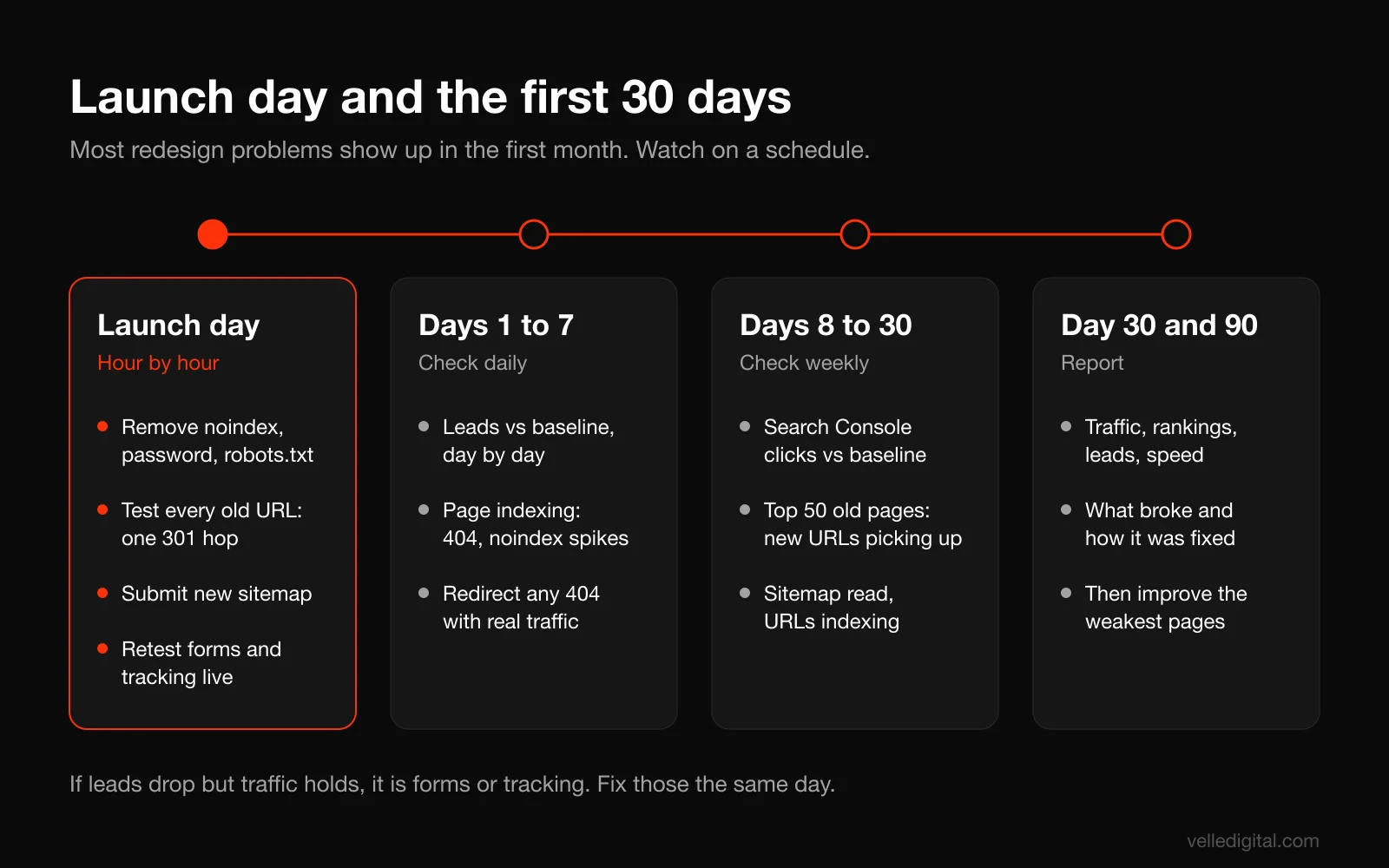
- Remove staging blocks. Password protection off, noindex tags removed, robots.txt no longer disallows the whole site. View the source of several live pages and search for "noindex" to confirm.
- Check robots.txt at yourdomain.com/robots.txt. It should allow crawling of the pages you want found and point to your new sitemap.
- Test redirects. Take your full redirect map and check every old URL. A crawler in list mode can check hundreds of URLs in minutes. Every old URL should return a single 301 to the correct new URL, which returns a 200.
- Test the domain variants. http, https, www and non-www should all land on the one final version in a single hop.
- Check HTTPS. The certificate is valid and there are no mixed content warnings.
- Check canonicals. They point to the live domain, not staging.
- Submit the new sitemap in Search Console and remove any old sitemap that lists retired URLs.
- Inspect key pages. Use the URL Inspection tool in Search Console on your homepage and top service pages to confirm Google can fetch them and sees them as indexable. You can request indexing for the most important ones.
- Retest every form and lead path on the live site. Repeat Step 10 quickly. Live sites have different email, domain and spam settings than staging.
- Confirm analytics is receiving live data in real-time reports.
- Check your 404 page. Visit a made-up URL and confirm it returns a real 404 status with a helpful page, not a 200 or a redirect to the homepage.
- Update external profiles. Google Business Profile, social profiles and directory listings should point to the new URLs, and run a full crawl of the live site to catch broken links.
The first 30 days after launch: what to monitor
Step 13: Monitor Search Console, analytics and leads
Some movement after a redesign is normal. Google's site move documentation says to expect temporary fluctuation in rankings while Google recrawls and reindexes the site, and that for medium-sized websites it can take a few weeks or more for Google to gradually start showing the new URLs instead of the old ones. Your job in the first month is to tell normal fluctuation apart from real problems, and fix the real problems fast.
Here is the monitoring schedule we use.
Days 1 to 7: check daily.
- Leads: compare daily form submissions and calls against the same days in your baseline. A sudden drop to zero is a broken form or tracking, not SEO.
- Search Console Page indexing report: watch for spikes in "Not found (404)," "Excluded by noindex tag," "Blocked by robots.txt" or "Page with redirect" for URLs that should be indexed.
- 404 hits: check your analytics or server logs for visits to URLs that 404. Each one with real traffic needs a redirect.
Days 8 to 30: check weekly.
- Search Console Performance: compare clicks and impressions week over week and against the same period last year. Look at the top 50 pages from your baseline and check that their new URLs are picking up the clicks.
- Sitemaps report: confirm the new sitemap was read without errors and that most submitted URLs are indexed over time.
- Leads and conversion rate by landing page: compare against your baseline from Step 2.
Decision rules for what you see
- If leads drop sharply in the first days but traffic is steady, the problem is forms, tracking or the conversion path. Retest every lead path today.
- If a specific old page lost its clicks and the new page is not picking them up, inspect the old URL. Is it redirecting to the right page in one hop? Is the new page indexable, and does it still cover the same topic with the same depth?
- If many pages show "Excluded by noindex tag" or "Blocked by robots.txt," treat it as an emergency. Remove the block and request indexing for key pages.
- If impressions dip slightly but recover week by week, that is normal fluctuation. Do not start changing things in a panic.
- If clicks are still down more than 20 percent after four to six weeks with no obvious technical cause, compare old and new versions of your top pages side by side. Missing content, weaker titles and lost internal links are the usual suspects.
At the 30 day mark, write a short report: traffic, rankings, leads and speed compared against the baseline, plus a list of what broke and how it was fixed. Repeat the comparison at 90 days, which is a fairer read on the redesign's real impact.
Step 14: Fix, refine and keep improving
A launch is not the end of the project. The first 30 days will turn up small problems: a redirect someone missed, a page that lost some content, a form field that confuses people. Fix them in order of business impact, starting with anything that stops leads.
After the first month, shift from fixing to improving. Take the pages with the most traffic and the weakest conversion rates and test changes one at a time. A redesigned site that keeps getting small, measured improvements will outperform one that launches and sits untouched for five years until the next redesign.
Common website redesign mistakes (and how to avoid them)
These are the mistakes we see most often when owners come to us after a redesign went wrong. Each one maps back to a step above.
- No URL map or redirect plan. Every changed URL returns a 404 and the rankings and backlinks go with it (Steps 3 to 6).
- Redirecting everything to the homepage. Tidy, but it throws away the relevance of each page. Redirect one to one.
- Launching with noindex or a robots.txt block. The most damaging mistake and the easiest to prevent (Steps 8 and 12).
- Cutting the content that ranked. Shorter pages with more white space look clean and rank worse. Design around your best content.
- Changing everything at once. New domain, platform, URLs, brand and content in one launch makes it almost impossible to tell what caused a drop. Google's site move guide suggests splitting a move into smaller steps if that makes sense for your site.
- Forgetting tracking or skipping the baseline. Without both, every conversation about the new site is opinion (Steps 2 and 10).
- Leaving old redirect chains in place. Redirects from the last redesign now chain through the new ones. Point them at the final URLs.
- Approving desktop mockups first. The mobile version gets squeezed into shape at the end, and most of your visitors see that version.
- Launching on a Friday or in peak season. Problems surface when nobody is around to fix them.
- Treating launch as the finish line. The first 30 days are when most problems are found. Budget time for them.
If you are earlier in the process and still pricing the project, our website cost guide explains what different budgets realistically get you, including how much planning and migration work should be in a quote.
How long does a website redesign take?
Timelines depend on scope, the number of pages and how fast decisions get made. As rough guidance from what we see with small and mid-sized businesses:
- A refresh of an existing site, with no URL changes, typically takes 2 to 6 weeks.
- A redesign of a small site (under 30 pages) on a new design and possibly a new platform typically takes 6 to 12 weeks.
- A larger redesign with hundreds of pages, a platform migration, integrations and a content rewrite often takes 3 to 6 months.
The phase owners most often underestimate is content. Writing and approving copy causes more delays than design or development, so start rewrites early, in parallel with design.
Who should own each part of the redesign?
Redesigns fail in the gaps between people. The designer assumes the developer handles redirects, the developer assumes the marketer checks tracking, and nobody removes the noindex tag. Give every area one named owner: goals and baseline (owner or marketing lead), inventory and URL map (whoever owns SEO), design (designer, with your sign-off), build, redirects and staging protection (developer), forms and tracking (one named person), and a launch lead with authority to delay launch if something fails.
If you are hiring an agency, ask to see their URL map, redirect plan and QA checklist before they build. An agency that cannot produce those documents is planning to wing the parts that protect your traffic. Good SEO services for a redesign start before design, not after launch.
The printable website redesign checklist
Use this as the master list. Copy it into a document or project tool and assign an owner to every line.
Before design
- Goals written down, with numbers and a timeframe.
- Baseline saved: Search Console clicks, top pages and queries, analytics sessions by channel, leads by source, Core Web Vitals.
- Full content inventory built from a crawl, sitemap, Search Console, analytics, backlinks and the CMS.
- Every URL marked keep, improve, merge or retire.
- New site structure and URL patterns agreed. Existing URLs kept wherever possible.
- URL map complete: every old URL has a new destination or a deliberate 404.
During design and build
- Top converting templates designed first, with real content.
- Every template reviewed at phone width.
- Performance budget agreed and met.
- Staging site password protected, with noindex as a backup.
- Titles, meta descriptions, H1s and body content carried over for every keep and improve page.
- Internal links updated to final new URLs.
- Self-referencing canonicals pointing to the live domain.
- New XML sitemap with only final, indexable URLs.
- Redirect rules written as one to one 301s, with no chains or loops.
QA before launch
- Every form submitted, received in the right inbox and CRM, with a confirmation shown.
- Tap-to-call links tested on a real phone.
- Analytics events fire once per action in DebugView.
- Conversion tags fire on successful submission only.
- Ad pixels, Tag Manager and call tracking present on every template.
Launch day
- Backup of the old site stored.
- Launch window early in the week, outside peak season.
- Staging password, noindex tags and robots.txt blocks removed. Live source checked.
- Every old URL tested: one 301 hop to the correct new URL.
- Domain variants redirect to one version.
- New sitemap submitted in Search Console.
- Key pages inspected with the URL Inspection tool.
- Forms and tracking retested on the live site.
- Google Business Profile and other profiles updated.
First 30 days
- Daily lead and 404 checks in week one.
- Page indexing report watched for noindex, robots.txt and 404 spikes.
- Weekly Search Console comparison against the baseline.
- New redirects added for any 404 with real traffic.
- 30 day report written, 90 day review scheduled.
Frequently asked questions
Will a website redesign hurt my SEO?
It does not have to. Most SEO losses after a redesign come from changed URLs without redirects, deleted or thinned content, and leftover noindex or robots.txt blocks. If you keep URLs where possible, redirect every changed URL one to one with 301s, keep the content that ranks and remove staging blocks at launch, temporary fluctuation is normal but lasting losses are uncommon.
How long does it take for rankings to recover after a redesign?
Google's site move documentation says it can take a few weeks or more for medium-sized sites before Google consistently shows the new URLs instead of the old ones, and longer for large sites. On a well-executed redesign, most small business sites settle within a few weeks. If clicks are still well below baseline after four to six weeks, look for a technical cause or missing content rather than waiting.
Should I change my URLs during a redesign?
Only if you have a clear reason, such as messy URLs with IDs or dates, a confusing structure, or a platform that cannot reproduce the old pattern. Every changed URL needs a 301 redirect and carries some risk. If a URL ranks and is readable, keep it.
What is the difference between a website redesign and a refresh?
A refresh improves the existing site (copy, photos, layout, calls to action) without changing the platform or URL structure. A redesign rebuilds the site's structure, design and often the platform, which usually changes URLs and needs a full redirect plan. Refreshes are cheaper and lower risk, so start there unless the platform, structure or speed is the real problem.
How long should I keep 301 redirects after a redesign?
Google recommends keeping redirects as long as possible, generally at least one year, so it can transfer signals to the new URLs. In practice, keep them indefinitely. They cost almost nothing to maintain, and old links and bookmarks keep sending visitors for years.
What should I check right after launching a redesigned website?
Confirm staging blocks are gone (no noindex, no robots.txt disallow, no password), test every old URL redirects in one hop, submit the new sitemap, inspect key pages in Search Console, and retest every form and tracking event on the live site. Then check leads and the Search Console Page indexing report daily for the first week.
How much does a website redesign cost?
It depends on the number of pages, whether you change platforms, how much content is rewritten and how much custom design and development is involved. A refresh can cost a fraction of a full redesign, while a redesign with a platform migration and new content costs considerably more. Our website cost guide breaks down realistic price ranges by tier.
Redesign without the risk
A redesign should leave you with a site that looks better, works better and brings in more leads than the old one, with your rankings intact. The steps above are the same ones we follow on every website development project: baseline, inventory, URL map, protected staging, full QA, a disciplined launch and 30 days of monitoring. If you are not sure whether you need a redesign or a refresh, start with a professional website audit and let the data decide, or book a call and we will tell you honestly which one your site needs.