How to Audit Your Website: A Complete Website Audit Checklist
A do-it-yourself website audit in 13 steps, using free tools. Check indexing, speed, mobile, on-page SEO, content, forms, tracking, accessibility and security, then prioritize fixes by impact and effort.
A website audit checklist is a structured list of checks that tells you whether your site can be found, loads fast, works on a phone, says the right things, turns visitors into leads, and records those leads accurately. You can run a solid audit yourself in a day or two using free tools: Google Search Console, PageSpeed Insights, Google Analytics 4, Tag Assistant, a free crawler, and your own phone.
This guide walks you through that audit in 13 steps, in the order we run them for clients: technical SEO (indexing, sitemaps, canonicals, redirects), speed and Core Web Vitals, mobile, on-page SEO, content, conversion paths, tracking, accessibility, and security. For each check you get the free tool to use, what "good" looks like, and what to do if it fails. At the end you will learn how to rank what you found by impact versus effort, and you will get a printable checklist you can reuse every quarter.
What a website audit actually checks (and what it doesn't)
A website audit answers one question: is anything on this site quietly costing you customers? Most sites we look at are not obviously broken. The damage is hidden: a service page Google never indexed, a contact form that sends to an inbox nobody checks, a conversion event that stopped firing after a plugin update six months ago.
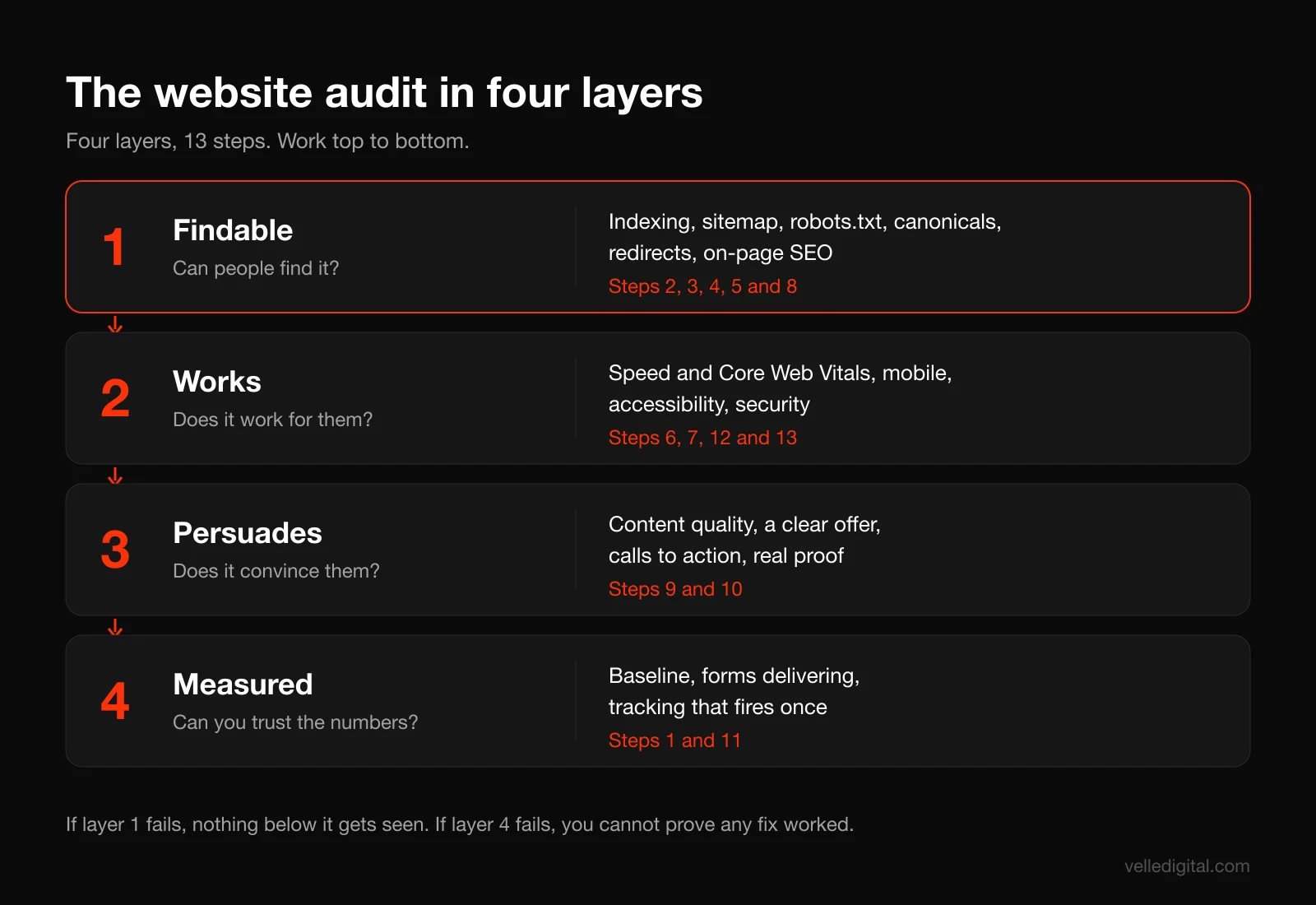
A good audit covers four layers, and problems in a lower layer make everything above it pointless:
- Can people find it? Indexing, crawlability, sitemaps, canonicals, redirects, on-page SEO.
- Does it work for them? Speed, mobile usability, accessibility, security.
- Does it persuade? Content quality, clarity of offer, calls to action, trust signals.
- Can you measure it? Forms delivering, analytics and conversion tracking firing correctly.
An audit is not a redesign brief or a full SEO strategy. It tells you what is wrong and how much it matters. Deciding what to build comes after.
Your free website audit toolkit
You do not need paid software to audit a small or mid-sized business site. Set these up before you start; some need a day or two to collect data.
- Google Search Console. Shows which pages are indexed, why others are not, real-user Core Web Vitals, security issues and search queries. The most important tool in the audit.
- PageSpeed Insights. Free at pagespeed.web.dev. Gives you real-user speed data (when your site has enough traffic) plus a lab test with specific fixes.
- Google Analytics 4 with DebugView. To confirm events and conversions are actually recording.
- Google Tag Assistant. Free at tagassistant.google.com. Shows tags firing as you click through your site.
- A crawler. The free version of Screaming Frog SEO Spider crawls up to 500 URLs, which covers most small business sites. It finds broken links, redirect chains, title and canonical issues in one pass.
- Lighthouse. Built into Chrome DevTools. Runs performance, accessibility and SEO checks on any page.
- WAVE. A free accessibility checker from WebAIM at wave.webaim.org.
- Your own phone, on cellular data. Not optional. More on this in Step 7.
Tip: create a spreadsheet with these columns before you start: Issue, URL, Category, Impact (1 to 3), Effort (1 to 3), Owner, Status, Notes. Log every problem the moment you find it, even small ones. You will sort them later.
The website audit checklist, step by step
Work through these in order. If Google is not indexing your service pages, perfecting their meta descriptions is wasted effort.
Step 1: Set up access and record a baseline
Before you change anything, write down where you are today. Without a baseline you cannot tell whether your fixes worked.
- Confirm you have owner or full access to Google Search Console, Google Analytics 4, your hosting account, your domain registrar, and your website admin. If an old agency or freelancer controls any of these, fix that first. You should own every one of them.
- In Search Console, verify a Domain property, which covers http, https, www, non-www and every subdomain.
- Record these baseline numbers for the last 3 months: total clicks and impressions from the Search Console Performance report, number of indexed pages from the Page indexing report, sessions and key events (conversions) from GA4, and the number of leads your team actually received from the website.
- Run PageSpeed Insights on your homepage and your top two service or product pages. Screenshot the mobile results.
That last comparison, GA4 conversions versus leads your team actually received, is one of the most revealing numbers in the whole audit. If GA4 says 40 form submissions last month and your inbox has 22, something is broken, and you will find it in Step 11.
Step 2: Check indexing in Google Search Console
A page that is not indexed cannot rank, however good it is. This is often the most valuable check in the audit.
Open Search Console and go to Indexing, then Pages. Google's Page indexing report documentation explains every status. Not indexed is not automatically bad; thank-you pages and old redirected URLs should be excluded. You are looking for important pages in the wrong bucket.
Here is how to work through it:
- Write down a list of your money pages: homepage, every service or product category page, location pages, your contact page, and your best content.
- For each money page, paste the URL into the URL Inspection tool at the top of Search Console. It tells you whether the URL is on Google, which canonical Google selected, and when it was last crawled.
- In the Page indexing report, click into each "Why pages aren't indexed" reason and scan the example URLs for anything on your money list.
The statuses that matter most, and what to do about each:
- Crawled - currently not indexed. Google fetched the page and decided not to index it. On a small business site this usually means the page is thin, too similar to another page, or not linked well internally. Fix: strengthen the content, add internal links from relevant pages, then request indexing.
- Discovered - currently not indexed. Google knows the URL exists but has not crawled it yet. On small sites this often points to weak internal linking or a page that is only reachable through the sitemap. Fix: link to it from your navigation or from related pages.
- Excluded by "noindex" tag. Someone told Google not to index the page. This is the classic leftover from a staging site or a developer who forgot to switch a setting back. If a money page shows this, it is a top priority fix.
- Duplicate without user-selected canonical. Google found several versions of similar content and you have not said which one is the original. See Step 4.
Decision rule: if any money page is not indexed, stop and fix that before anything else in this audit. Once fixed, use the Request Indexing button in URL Inspection. Then check again in a week or two.
Quick check anyone can do: search Google for site:yourdomain.com. It is not an exact count, but if you have 30 pages and Google shows 4, or it shows pages from an old site or staging domain, you have found your first issue.
Step 3: Audit your sitemap and robots.txt
Your XML sitemap is a list of the URLs you want Google to know about. Your robots.txt file tells crawlers what they may and may not fetch. Both are simple, and both are commonly wrong.
Check the sitemap first. Most platforms generate one automatically at yourdomain.com/sitemap.xml or yourdomain.com/sitemap_index.xml. Open it in your browser and look at what is inside. Google's sitemaps overview covers formats and when you need one.
Your sitemap should:
- Contain only URLs that return a 200 status, are indexable, and are the canonical version (https, your preferred www or non-www form, correct trailing slash).
- Exclude redirected URLs, 404s, noindexed pages, thank-you pages, tag archives you do not want ranked, and internal search results.
- Include every money page from Step 2.
- Be submitted in Search Console under Indexing, then Sitemaps, with a status of "Success."
To check quickly, run your crawler in list mode on the sitemap URLs and filter for anything that is not a 200 or not indexable.
Now check robots.txt at yourdomain.com/robots.txt. It should be short. A typical small business site needs little more than this:
User-agent: * | Disallow: /wp-admin/ | Allow: /wp-admin/admin-ajax.php | Sitemap: https://yourdomain.com/sitemap.xml
(Each part separated by a vertical bar goes on its own line in the real file. Your admin paths will differ by platform.)
The danger sign is "Disallow: /" under "User-agent: *". That blocks your entire site, usually because it launched with staging settings intact.
One important nuance from Google's robots.txt introduction: robots.txt is not a mechanism for keeping a page out of Google. If you want a page out of search results, use a noindex tag and let Google crawl it so it can see that tag. Blocking a page in robots.txt and adding noindex at the same time is a common mistake, because Google can never read the noindex.
Step 4: Check canonicals and duplicate URLs
Most sites can be reached at several addresses (http and https, with and without www, with tracking parameters). Each is potentially a separate duplicate URL to Google. Canonicalization tells Google which version is the real one. Google's guide on consolidating duplicate URLs is the reference here.
Run these four tests by typing each variation into your browser:
- http://yourdomain.com
- http://www.yourdomain.com
- https://yourdomain.com
- https://www.yourdomain.com
All four should end up at exactly one version, through a single redirect. If any of them loads the site without redirecting, or lands on a security warning, log it.
Then check canonical tags on your key pages. In your crawler, look at the Canonicals tab. Every indexable page should have a self-referencing canonical (the page points to itself) unless it is intentionally a duplicate of another page. Problems to flag:
- Missing canonicals on important pages.
- Canonicals pointing to the wrong URL, such as every page pointing to the homepage (a surprisingly common template bug).
- Canonicals pointing to redirected, 404 or noindexed URLs.
- Canonicals pointing to http when the site runs on https.
- Google selecting a different canonical than the one you declared. URL Inspection shows both "User-declared canonical" and "Google-selected canonical." If they differ on a money page, Google does not believe you, usually because the content is too similar to another page or your internal links point to the other version.
Decision rule: if two of your pages target the same service and say much the same thing (for example, "Roof Repair" and "Roof Repairs Edmonton"), do not try to fix it with canonicals alone. Merge them into one strong page and 301 redirect the weaker URL.
Step 5: Find broken links and redirect problems
Broken links waste visitors' time and redirect chains slow pages down. A crawler finds both.
Run a full crawl of your site and then check:
- Internal 404s. Filter Response Codes for Client Error (4xx). The crawler shows which pages link to each broken URL. Fix the link at the source.
- Redirect chains. A redirects to B, which redirects to C. Point internal links and the first redirect straight at the final URL.
- Redirect loops. A redirects to B, B redirects back to A. The page never loads. Treat as urgent.
- Temporary redirects used for permanent moves. Google's redirects documentation explains that permanent redirects (301 or 308) signal that the target should be shown in search results, and you should use them when you are sure the redirect will not be reverted. If your old service URLs redirect with a 302 after a redesign and the move is permanent, switch them to 301.
Then check the "Not found (404)" examples in Search Console. If old URLs that had traffic or backlinks show up, 301 redirect each to the closest relevant live page, not the homepage.
Redesign warning: the single biggest cause of traffic loss we see after a new site launches is missing redirects. If you rebuilt your site in the last year and organic traffic dropped, check this step first.
Step 6: Test speed and Core Web Vitals
Speed affects rankings, but the bigger effect is on people: a slow page on a phone is one someone leaves before your number loads.
Google measures user experience with three Core Web Vitals. According to web.dev, good targets are:
- Largest Contentful Paint (LCP), loading: within 2.5 seconds.
- Interaction to Next Paint (INP), responsiveness: 200 milliseconds or less.
- Cumulative Layout Shift (CLS), visual stability: 0.1 or less.
Google recommends measuring these at the 75th percentile of page loads, segmented across mobile and desktop. In plain terms, three out of four visits should hit the target.
How to run this check:
- In Search Console, open Experience, then Core Web Vitals, for real-user data. "Not enough data" means you will rely on lab tests.
- Run your homepage and top service pages through PageSpeed Insights. The top section, "Discover what your real users are experiencing," is field data and it is what counts. The Performance score below is a lab simulation, useful for diagnosis but not the verdict.
- Check the Mobile tab first. It is almost always worse.
- Scroll to Diagnostics and note the top three opportunities PageSpeed lists for each page.
The usual culprits on small business sites, and the fix for each:
- Huge images. A 4000 pixel wide, 3 MB hero photo displayed at 1400 pixels. Fix: resize, compress, serve WebP or AVIF, and lazy-load images below the fold. This alone often fixes LCP.
- Too many plugins or third-party scripts. Chat widgets, review carousels, heatmap tools, three analytics tags, a pop-up builder. Each one adds JavaScript that delays interaction. Fix: list every script and remove anything nobody has looked at in six months.
- Slow hosting. If the server response time (Time to First Byte) is consistently slow, no amount of front-end tuning saves you. Fix: better hosting or a CDN.
- Layout shift from late-loading elements. Banners, cookie bars, images without width and height set, web fonts swapping in. Fix: reserve space for anything that loads late.
- Page builder bloat. Some visual builders generate heavy code for simple layouts. Sometimes the honest fix is a rebuild, which we compare in our Next.js vs WordPress breakdown.
Decision rule: if your key pages pass all three Core Web Vitals in field data, move on. Chasing a lab score from 85 to 100 is rarely worth the time. If they fail, attack mobile LCP first; it is the most visible and often the easiest to fix.
Step 7: Test the mobile experience by hand
Google uses the mobile version of your content for indexing and ranking, as its mobile-first indexing guidance explains. But no tool tells you whether the site is pleasant to use on a phone. You have to pick one up.
Turn off Wi-Fi so you are on cellular data, then open your site and do these things as if you were a customer:
- Find the phone number and tap it. Does it open the dialer? Is it visible without scrolling on the homepage and on every service page?
- Open the menu. Can you reach every important page in two taps? Does the menu close properly?
- Fill out your main form with your thumb. Do the right keyboards appear? Does autofill work? Does anything hide behind the keyboard?
- Read a service page. Is the body text at least around 16 pixels? Can you read it without zooming? Are there long blocks of text with no breaks?
- Tap buttons and links. Are they big enough and spaced so you do not hit the wrong one?
- Watch for pop-ups. Does a pop-up cover the content on load? Can you close it easily?
- Check horizontal scrolling. If the page wiggles side to side when you scroll, something is wider than the screen.
- Check content parity. Content hidden on mobile may never be seen by Google.
If you can, ask someone who has never used your site to request a quote while you watch silently. Five minutes of watching a real person struggle with your form is worth more than any score.
Step 8: Audit on-page SEO (titles, descriptions, headings)
On-page SEO is about making each page clearly about one thing, and saying so in the places Google and searchers look first. Your crawler pulls all of this into one sheet.
Title tags. Google's guidance on title links says every page should have a unique, descriptive and concise title, and warns against keyword stuffing and boilerplate. Check for:
- Missing titles.
- Duplicate titles (the most common issue: every page titled "Home | Business Name" or the same title across all location pages).
- Titles that do not mention the service or location the page targets.
- Titles that are very long and get cut off in results (aim for roughly 50 to 60 characters as a practical guide).
A template that works for most service pages:
[Service] in [City] | [Business Name]. Example: Furnace Repair in St. Albert | Acme Heating
Meta descriptions. These do not directly affect rankings, but they influence whether someone clicks. Google may rewrite them, but a good one is still your best shot at the click. Look for missing and duplicate descriptions. Each should describe the page's offer in one or two sentences and give a reason to click.
Headings. Each page should have one H1 that states what the page is about. Use H2s and H3s to structure sections. Flag pages with no H1, multiple H1s used for styling, or an H1 that just says "Welcome."
Images. Descriptive file names and alt text on meaningful images. Alt text is first an accessibility feature (Step 12), and a minor image SEO signal second.
Internal links. Every money page should be linked from at least a few other relevant pages, with anchor text that describes the destination ("furnace repair" rather than "click here"). Your crawler shows the inlink count for each URL; sort ascending and look at your important pages near the bottom.
Structured data. If you are a local business, LocalBusiness markup with your name, address, phone and hours helps search engines understand you. Our local SEO guide covers this along with your Google Business Profile.
For a deeper look at the on-page errors we see most often, read 5 SEO mistakes we see agencies make.
Step 9: Audit your content
Technical fixes get a page into the race. Content decides whether it wins. Google's guidance on creating helpful, reliable, people-first content includes a set of self-assessment questions that are worth reading in full before this step.
Export a list of every indexable page from your crawler, add each page's clicks and impressions from the last 12 months (Search Console, Performance, Pages tab), and then make a decision for each page:
- Keep: gets traffic or leads and is accurate. Leave it alone, apart from small updates.
- Improve: targets something valuable but underperforms. Typical signs: lots of impressions, few clicks (title and description problem), or ranking on page two (content depth problem).
- Merge: two or more pages competing for the same topic. Combine into one and redirect.
- Remove: outdated, thin, no traffic, no links, no business value. Delete it and redirect if there is a sensible destination, or let it return a 404 or 410 if there is not.
Then read your money pages as a skeptical customer would. For each service page, ask:
- Does the first screen say exactly what you do, for whom, and where?
- Does it answer the questions customers ask on the phone: price range or how pricing works, timelines, what is included, service area, warranties?
- Is there proof: reviews, photos of real work, credentials, years in business, named team members?
- Is the call to action obvious and repeated after major sections?
- Is anything out of date: old prices, discontinued services, staff who left, last year's promotions, copyright year?
- Would someone comparing you to two competitors find a reason to pick you?
The most common content gap we see is one "Services" page listing eight services in bullets. Each deserves its own page with enough substance to rank and convert. If your copy reads generic, our website copywriting guide walks through rewriting it.
Quick win: in Search Console, filter Performance by page and sort by impressions. Any page with high impressions and a click-through rate well below your site average is a candidate for a rewritten title and meta description. It is one of the fastest improvements in the entire audit.
Step 10: Test every conversion path
This is the step most audits skip, and it is where the real money hides. A conversion path is every way a visitor can become a lead or customer: forms, phone calls, booking widgets, chat, checkout, email links.
List them all first. Then test each one, end to end, as a customer:
- Submit every form on the site with a real-looking test entry (use a name like "Test Audit" so your team knows). Time how long it takes to arrive.
- Confirm where it lands. Did the email arrive? In which inbox? Did it land in spam? Did it create a record in your CRM with the right source? Did the auto-reply send, and does it say something useful?
- Check the thank-you experience. Does the visitor see a clear confirmation that tells them what happens next and when? A form that just clears itself leaves people wondering whether it worked, and some will submit again or call.
- Tap every phone number on mobile. Make sure it is the current number and it dials correctly. If you use call tracking numbers, confirm they forward.
- Book a test appointment if you use online booking. Check the confirmation, the calendar entry, the reminder, and that it shows real availability.
- Run a test purchase if you sell online, including the confirmation email and the order arriving in your back end.
- Test on mobile and desktop, in at least two browsers. Forms that break only in Safari are common.
Then review the calls to action themselves:
- Does every page have one clear primary action? Pages with five competing buttons often get fewer clicks on any of them.
- Is the button text specific ("Get my free quote") rather than vague ("Submit")?
- Is the form as short as it can be? Ask only what you need to respond well.
For more on structuring the pages that carry your conversions, see our guide to landing page best practices.
Real-world pattern: we routinely find contact forms that deliver to a former employee's mailbox, a shared inbox nobody monitors, or a spam folder. If your lead volume "just dropped," test the form before you touch your ads.
Step 11: Verify tracking is actually firing
If your analytics are wrong, every decision you make from them is wrong. This step confirms that the numbers in GA4, Google Ads and Meta reflect what is really happening.
Check that the base tag loads on every page. Open Tag Assistant, enter your URL, and click through your homepage, a service page, the contact page and the thank-you page. You should see your GA4 tag (and Google Ads tag, if you run ads) fire on every page. Common problems:
- The tag is missing on some templates, such as landing pages built in a separate tool.
- The tag fires twice because it was installed both in the code and through Tag Manager or a plugin, which double-counts conversions.
Check that conversion events fire once, at the right moment. Turn on debug mode through Tag Assistant, then open GA4, Admin, and DebugView. Google's guide to monitoring events in DebugView shows how to read it. Now submit your test form, click your phone number, and complete a booking. Watch each event appear. For each conversion, confirm:
- The event fires only when the action actually succeeds (for example, on the thank-you page or a successful submit), not when someone clicks the button and the form errors out.
- It fires once per conversion, not twice.
- It is marked as a key event in GA4 so it shows up in your reports.
- If you run Google Ads or Meta ads, the matching conversion fires in those platforms too. Use the Meta Pixel Helper extension and the Google Ads conversion status column to check.
Reconcile with reality. Go back to the baseline from Step 1. Compare last month's GA4 form conversions with the number of form leads your team actually received. They will never match exactly (ad blockers, consent choices, test entries), but if they are wildly different, find out why. A large gap in either direction is a tracking bug.
Check consent handling. If you use a cookie banner, test both accept and reject and confirm tags behave accordingly.
Check that leads carry their source. Ideally, every lead in your CRM records where it came from (organic search, Google Ads, Meta, referral). If your CRM shows every lead as "website," you cannot tell which channel deserves more budget. Connecting forms to a CRM with source tracking is one of the highest-value fixes in this audit for anyone spending on ads.
Step 12: Check accessibility basics
Accessibility means people with disabilities can use your site, whether they rely on screen readers, keyboards, magnification or have low vision. It is the right thing to do, a legal requirement in many places, and good usability for everyone.
The scale of the problem is large. WebAIM's 2026 analysis of the top one million home pages found detectable WCAG 2 failures on 95.9% of them. The most common issues were low contrast text (83.9% of home pages), missing alternative text for images (53.1%), and missing form input labels (51%). The good news: those are exactly the issues you can find and fix yourself.
Run these checks on your homepage, a service page and your contact page:
- Run WAVE. Paste each URL into WAVE. Focus on the red errors and contrast errors first. Ignore the long list of alerts until the errors are cleared.
- Run Lighthouse's accessibility audit in Chrome DevTools for a second opinion.
- Unplug your mouse. Use only the Tab, Shift+Tab, Enter and Space keys to navigate the page and submit the form. Can you see where focus is at every moment? Can you reach and use the menu? Can you submit the form? Do you get trapped in a pop-up you cannot close?
- Check form labels. Every field should have a visible label, not just placeholder text that disappears when you start typing.
- Check alt text. Meaningful images (photos of your work, diagrams) need alt text describing them. Decorative images should have empty alt text so screen readers skip them.
- Check contrast. Light gray text on white, or white text on a pale photo, fails for many readers. WAVE flags this.
- Check video. Videos with speech need captions.
Automated tools catch only part of the picture, as WebAIM itself notes. If you serve the public at scale or work in a regulated industry, budget for a professional accessibility review after you fix the basics.
Step 13: Check security and maintenance
A hacked site loses rankings, triggers browser warnings and can leak customer data. Most compromises we see come from neglected updates, not sophisticated attacks.
Work through this list:
- HTTPS everywhere. The padlock should appear on every page, and Step 4 should have confirmed that http redirects to https. Check for "mixed content" warnings in Chrome DevTools (images or scripts still loaded over http).
- Search Console security. Open Security and Manual Actions in Search Console. Both "Security issues" and "Manual actions" should say no issues detected.
- Updates. Log into your CMS. Is the core software current? How many plugins or extensions have pending updates? Are any plugins abandoned (no updates from the developer in a year or more)? Abandoned plugins are a common entry point.
- Admin accounts. List every user with admin access. Remove former staff, old agencies and freelancers who no longer need access. Make sure every remaining admin uses a strong, unique password and multifactor authentication. CISA's Secure Our World program lists strong passwords, multifactor authentication, a password manager and updating software among its core steps.
- Backups. Confirm automatic backups run, that they are stored somewhere other than the same server, and that someone has actually restored one recently. A backup nobody has tested is a hope, not a plan.
- Domain and SSL renewal. Check when your domain and SSL certificate expire, and that auto-renew is on with a current payment card. An expired domain takes the whole business offline, email included.
- Uptime monitoring. Set up a free monitor so you hear about downtime from an alert, not a customer.
If this list is longer than you have time for every month, that is what a website maintenance plan exists for. Security is the one area where "we'll get to it" reliably turns into an emergency.
How to prioritize your website audit findings
By now your spreadsheet probably has 30 to 100 rows. That is normal. The mistake is trying to fix everything at once, or fixing in the order you found things. Instead, score each issue on two scales and sort.
Impact (1 to 3):
- 3, high: directly blocks leads, revenue or visibility. Money page not indexed, broken form, conversion tracking wrong, site-wide noindex, security warning, failing Core Web Vitals on key pages.
- 2, medium: measurably hurts performance on important pages. Missing or duplicate titles on service pages, redirect chains, thin service pages, weak CTAs, contrast failures on forms.
- 1, low: minor or cosmetic, or affects low-value pages. Missing alt text on decorative images, broken links on old blog posts, slightly long titles.
Effort (1 to 3):
- 1, low: under an hour, no developer needed. Fix a setting, update a title, change a form recipient, remove a plugin.
- 2, medium: a few hours to a couple of days. Rewrite a service page, compress all images, set up redirects, fix tag duplication.
- 3, high: needs a developer or a project. Rebuild templates, migrate hosting, restructure navigation, rewrite all content.
Then put each issue into one of four groups:
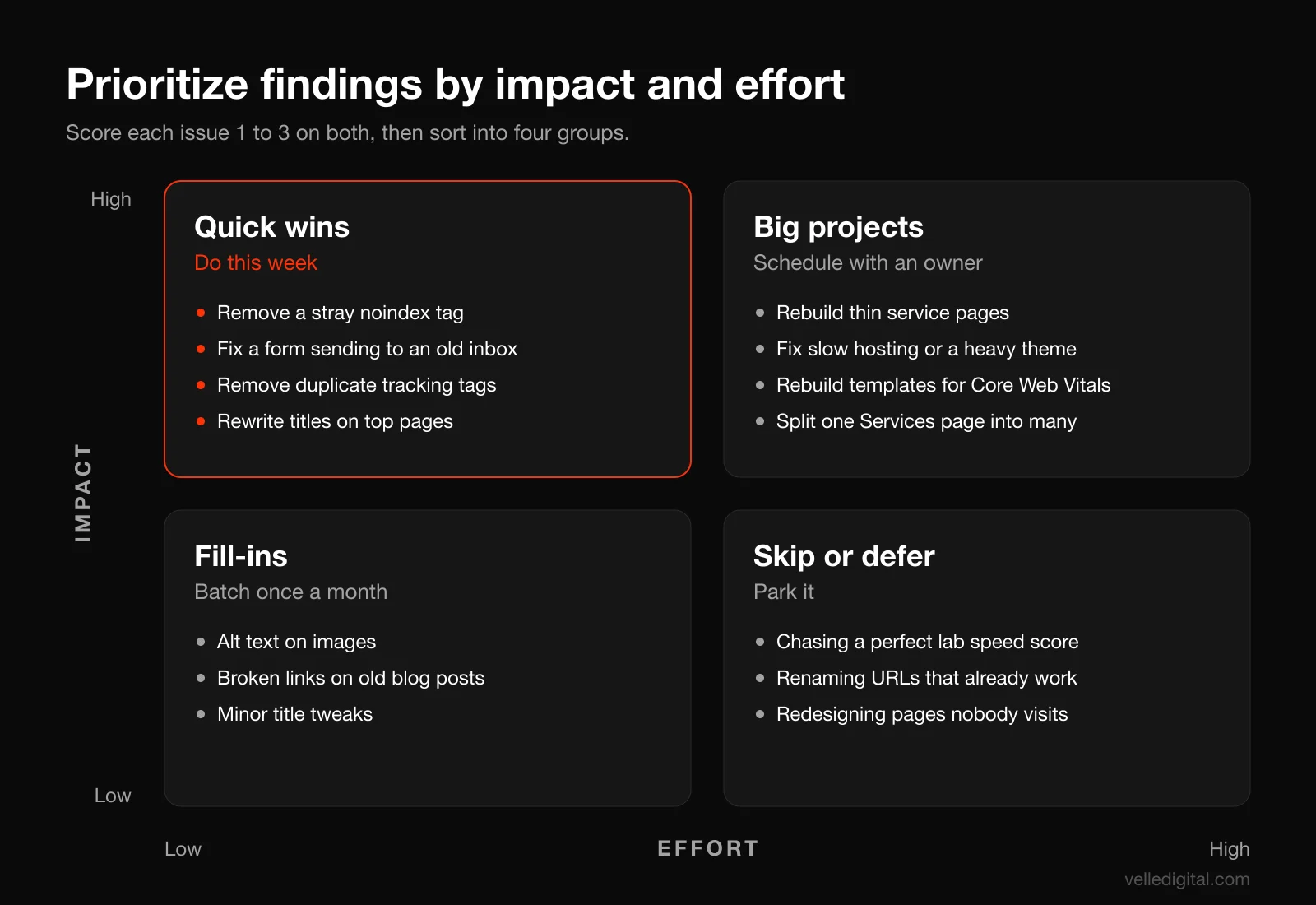
- Quick wins (high impact, low effort): do this week. Removing a stray noindex, fixing a form that sends to the wrong inbox, de-duplicating a tag, rewriting titles on top pages.
- Big projects (high impact, high effort): schedule. A content rebuild for your service pages, fixing slow hosting, a template rebuild to fix Core Web Vitals. Give each a start date and an owner.
- Fill-ins (low impact, low effort): batch. Group them into an afternoon once a month: alt text, old broken links, minor title tweaks.
- Skip or defer (low impact, high effort): park. Chasing a perfect lab speed score, rewriting URLs that already work, redesigning pages nobody visits.
A worked example
Here is a hypothetical audit for a home services company with a 25 page site, to show how the scoring plays out. The numbers are illustrative, not from a real client.
- Contact form emails go to an old inbox: impact 3, effort 1. Quick win, fix today.
- Four service pages tagged noindex since launch: impact 3, effort 1. Quick win, fix today and request indexing.
- GA4 conversion fires on button click, even when the form errors out: impact 3, effort 2. Quick win to medium, fix this week.
- Mobile LCP of 4.8 seconds on all pages due to a heavy theme and slider: impact 3, effort 3. Big project, schedule for next month.
- 14 pages with duplicate title tags: impact 2, effort 1. Quick win, do this week.
- One generic Services page instead of individual service pages: impact 3, effort 3. Big project.
- 22 images missing alt text: impact 1 to 2, effort 1. Fill-in.
- Old URLs use query strings instead of readable slugs: impact 1, effort 3. Skip.
The first three items, all fixable in a few days, matter more than everything else combined. That is the typical shape of a small business audit: a few quiet, cheap problems doing most of the damage.
Decision rule: never start a big project while a quick win with impact 3 is still open. A broken form makes every other improvement worthless.
Common website audit mistakes
These are the mistakes we see most often.
- Obsessing over a single score. A PageSpeed score of 62, an "SEO health" score of 71 from some tool: these are proxies. Field Core Web Vitals, indexed money pages and real leads are the outcomes. Do not spend a week moving a lab score that does not change any of them.
- Running only automated tools. Crawlers cannot tell you that your form goes to a dead inbox, that your phone number is wrong, or that your service page fails to mention pricing. Half the valuable findings in this checklist come from doing things by hand.
- Treating every warning as urgent. Tools flag hundreds of things. Many do not matter for a 25 page local business site. Prioritize with impact and effort, not with the tool's red icons.
- Fixing before recording a baseline. Without before numbers, you cannot show what improved, and you cannot tell if a fix made things worse.
- Auditing once and never again. Sites drift. A form that worked in March can fail in July.
- Changing everything at once. If you fix 40 things in one day and traffic moves, you will not know which change caused it. Ship the quick wins together, then roll out bigger changes in stages and note the dates.
How often should you audit your website?
How often depends on how much the site changes and how much it matters to your revenue. Here is the schedule we suggest to clients:
- Monthly (30 minutes): check Search Console for new errors, submit a test form, compare GA4 conversions with real leads, apply updates.
- Quarterly (half a day): run the full printable checklist below, crawl the site, re-run PageSpeed on key pages, review content performance.
- Before and after any major change: a redesign, migration, hosting or domain change. Crawl the old site before launch so you have every URL for redirect mapping, then re-audit within a week.
- Whenever leads drop unexpectedly: start with Steps 10 and 11 (conversion paths and tracking), then Step 2 (indexing). In our experience, a sudden drop is far more often a broken form, a broken tag or a deindexed page than an algorithm change.
The printable website audit checklist
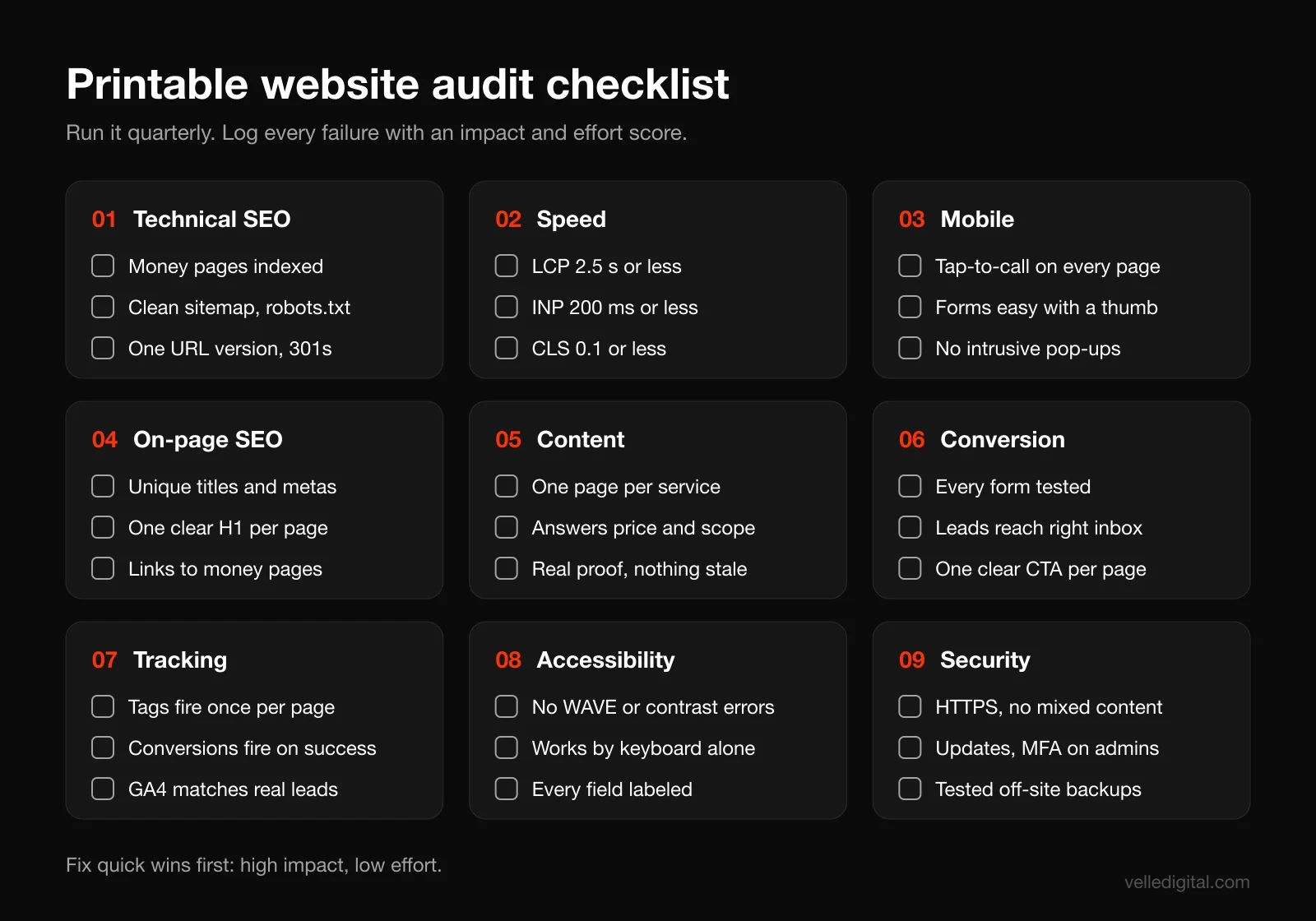
Print this, or copy it into your spreadsheet. Tick each item, and log anything that fails with an impact and effort score.
Setup and baseline
- Owner access to Search Console (Domain property), GA4, hosting, registrar and CMS
- Baseline saved: clicks, indexed pages, key events, real leads, PageSpeed screenshots
Technical SEO
- Every money page indexed, none blocked by noindex or a wrong canonical
- Sitemap lists only 200, indexable, canonical URLs and shows Success in Search Console
- robots.txt does not block the site and lists the sitemap
- All http, https, www and non-www versions redirect to one version in one hop
- No internal 404s, redirect chains or loops; permanent moves use 301s to relevant pages
Speed and mobile
- Key pages pass LCP (2.5 seconds), INP (200 milliseconds) and CLS (0.1) in field data
- Images compressed and modern format; unused scripts and plugins removed
- Tap-to-call visible on every key page; menu and forms easy to use with a thumb
- No horizontal scrolling or intrusive pop-ups; mobile content matches desktop
On-page SEO and content
- Unique, descriptive title and meta description on every key page; one clear H1
- Money pages have descriptive internal links; LocalBusiness markup in place
- Every page marked keep, improve, merge or remove; each service has its own page
- Service pages answer pricing, timing, scope and service area, with real proof
- Nothing outdated: prices, staff, offers, services
Conversion and tracking
- Every form tested and delivered to the right inbox and CRM, not spam
- Thank-you page and auto-reply explain next steps; booking and checkout tested
- One clear primary CTA per page with specific button text
- Tags fire once per page; conversions fire once, only on success, marked as key events
- GA4 conversions roughly reconcile with real leads; leads carry their source
Accessibility and security
- WAVE errors and contrast errors cleared; site usable by keyboard; every field labeled
- HTTPS everywhere; no security issues or manual actions in Search Console
- CMS and plugins updated; old admin users removed; multifactor authentication on
- Off-site backups running with a tested restore; domain and SSL auto-renew on
If you want an agency view of how these checks fit into a broader SEO program, our SEO services page explains how we approach ongoing work after an audit.
Frequently asked questions
What should a website audit checklist include?
A complete website audit checklist covers technical SEO (indexing, sitemaps, robots.txt, canonicals, redirects), speed and Core Web Vitals, mobile usability, on-page SEO, content quality, conversion paths, analytics and conversion tracking, accessibility, and security and maintenance. The conversion and tracking checks are the ones most often skipped, and they are frequently where the biggest problems are.
How long does a website audit take?
For a small business site of 10 to 50 pages, a do-it-yourself audit using this checklist takes most people one to two days, including fixing the quick wins. Larger sites, ecommerce stores and sites with years of accumulated content take longer, mainly because the content review in Step 9 scales with page count.
Can I audit my website for free?
Yes. Every check in this guide can be done with free tools: Google Search Console, PageSpeed Insights, Lighthouse, Google Analytics 4 DebugView, Tag Assistant, WAVE and the free tier of a crawler such as Screaming Frog, which handles up to 500 URLs. Paid tools add convenience and scale, but they are not required for most small business sites.
What is the most important part of a website audit?
Start with whether your money pages are indexed and whether your forms and tracking actually work. If Google cannot index your service pages or your contact form is not delivering, nothing else matters. After that, speed on mobile and the quality of your service page content usually have the largest effect.
How often should I audit my website?
Run a quick 30 minute health check monthly, the full checklist quarterly, and a dedicated audit before and after any redesign, migration or hosting change. Also audit immediately whenever leads drop without an obvious reason, starting with your forms and tracking.
What is the difference between a website audit and an SEO audit?
An SEO audit focuses on how a site performs in search: indexing, technical health, on-page optimization, content and links. A website audit is broader and also covers conversion paths, tracking accuracy, accessibility and security, because a site can rank well and still lose leads to a broken form or bad data.
Get a second set of eyes on your site
This checklist will catch most of what is holding a small business website back, and you can run it yourself. If you would rather have someone who does this every day work through it with you, or you have found problems you are not sure how to fix, our website audit service delivers a prioritized list of fixes ranked by impact and effort, plus a clear plan for what to tackle first. You can also book a call and walk us through what you found.