CRM for Small Business: How to Choose One and Set It Up Right
How to pick a CRM without trusting affiliate rankings, then set it up so your team actually uses it: pipeline stages, required fields, lead source tracking, first automations, privacy and a 30 day rollout.
A CRM for small business is one shared place where every lead, customer, conversation and deal lives, so nothing depends on someone's memory, inbox or a spreadsheet only one person understands. The right one is not the one with the most features. It is the one your team will actually update every day, that connects to the tools you already use, and that lets you take your data with you if you ever leave.
Choosing well comes down to five checks: map how a lead becomes a customer today, list your must-haves, calculate the real total cost, confirm the integrations, and test the data export before you sign. Setting it up right comes down to a short pipeline, a few required fields, honest lead source tracking, a handful of automations and a 30 day rollout. This guide walks through every step, with templates you can copy, the mistakes we see most often and a checklist at the end.
What a CRM actually does
CRM stands for customer relationship management, but the name oversells the software and undersells the habit. In practice a CRM does four jobs for a small business.
- It is the record. Every person and company you deal with gets one profile with their contact details, history, notes and files. When someone calls, anyone on the team can see who they are and what happened last.
- It is the pipeline. Every open opportunity sits in a stage (new, contacted, quoted, won, lost) so you can see at a glance what is moving, what is stuck and what is worth chasing this week.
- It is the task list. Follow-ups, callbacks and reminders are attached to the person they concern, with a due date and an owner, instead of living on sticky notes.
- It is the trigger. When something happens (a form is submitted, a deal changes stage, a quote is sent) the CRM can do something automatically: send a text, assign the lead, create a task or notify a manager.
What a CRM does not do is fix a sales process you have never written down. If your team handles leads five different ways today, a CRM will faithfully record five different processes. That is why most of this guide is about decisions you make around the software, not the software itself.
A spreadsheet is a list: it cannot remind anyone to call, cannot show email history, and breaks the moment two people edit it differently. An inbox holds conversations but scatters them across people, so when a salesperson leaves, their relationships leave too. A CRM combines the list, the history and the reminders in one place that belongs to the business, and those relationships are an asset worth storing properly.
Signs you need a CRM
Not every business needs one on day one. A solo consultant with eight clients can run on a calendar and a notes app. But the tipping point arrives sooner than most people think. You probably need a CRM if two or more of these are true.
- Leads come from more than two places. Website forms, phone calls, Facebook and Instagram messages, Google ads, referrals, a booking widget. Once leads arrive in different inboxes, some will be missed.
- More than one person touches a lead. A coordinator answers the phone, an estimator visits, an owner approves the quote. Every handoff without a shared record is a chance to drop the ball.
- You cannot answer "how many leads did we get last month and where from" in under five minutes. If the answer requires scrolling through three inboxes, you are making marketing decisions blind.
- Follow-up depends on memory. If quotes go out and nobody chases them unless the owner remembers, you are leaving money on the table. In our experience, consistent follow-up is one of the biggest controllable differences in close rate.
- Someone left and took the customer history with them. If it happened once, it will happen again.
- You are about to spend more on ads. More leads into a leaky process just means more leaks. Fix the process first.
Signs you do not need one yet
If you handle fewer than about ten new inquiries a month, you are the only person who deals with them, and you reliably follow up, a well-structured spreadsheet and a calendar may be enough for now. Revisit the decision when you hire your first salesperson or coordinator, or when you start paid advertising. Buying a CRM to feel organized, without a process to put in it, usually produces an expensive empty database.
Off the shelf vs custom CRM: which is right for your small business?
There are two broad paths. Off the shelf means a subscription product built for thousands of businesses, which you configure to fit yours. Custom means software built (or heavily extended) around your exact workflow, usually on top of a database and integrations you own.
For most small businesses, off the shelf is the right starting point. The products are mature, the cost is predictable, and the vendor handles hosting, security patches and mobile apps. You trade some flexibility for speed and reliability.
When off the shelf makes sense
- Your sales process looks broadly like everyone else's: lead comes in, you contact them, you quote, they say yes or no.
- You need to be running in weeks, not months.
- Your integrations are common ones (email, calendar, website forms, ad platforms, accounting) with native connectors.
- You would rather pay a predictable monthly fee than own and maintain software.
When custom makes sense
Custom is worth considering when an off-the-shelf product would force your team to work around the software every day. The patterns that justify it:
- Your workflow is genuinely unusual. For example, a multi-step job with site visits, permits, subcontractor scheduling and staged payments, where the "deal" is really a project with dependencies.
- You are paying for workarounds. If you are stacking add-ons, automation tools and a spreadsheet on top of a CRM to make it fit, you may already be paying custom prices for an off-the-shelf result.
- Per-seat pricing punishes your model. Forty field staff who each log one thing a day can cost more in seats over three years than a purpose-built tool.
- You need integration with systems that have no connector. Legacy dispatch software, a proprietary quoting tool, an industry database.
The decision rule
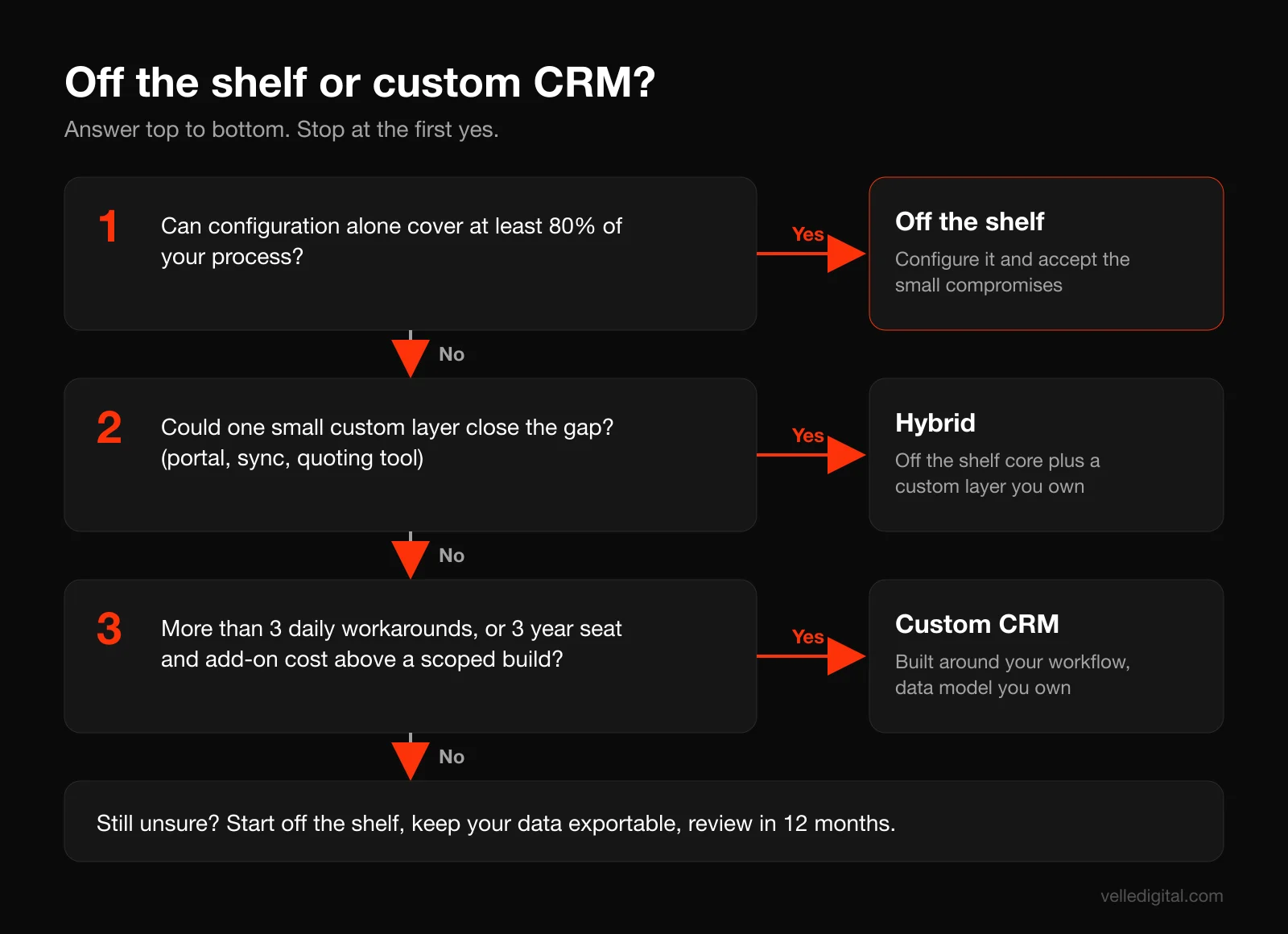
If an off-the-shelf CRM can handle at least 80 percent of your process with configuration alone, start there and accept the 20 percent of compromise. If you are listing more than three daily workarounds, or your three-year subscription and add-on cost exceeds what a scoped custom build would cost, look at building a custom CRM around your workflow. There is also a middle path: an off-the-shelf core with a small custom layer (a portal, a quoting tool, a sync) for the part that truly does not fit.
How to choose a CRM for small business: the evaluation steps
You do not need to read fifty comparison articles. Many are written by affiliates paid per signup, which is why they all crown a different winner. Instead, run your own short evaluation against your own process. These steps work whether you are comparing three subscriptions or weighing a subscription against a custom build.
Step 1: Map how a lead becomes a customer today
Before you look at a single product, write down what actually happens now. Answer these questions with your team, not alone.
- Where do leads come from? List every channel, even the small ones.
- Who sees the lead first, and how? (Email notification, phone, a shared inbox, a text.)
- What is the first thing that person does? How fast?
- What information do you need before you can quote or book?
- What are the steps between first contact and a signed job? Site visit, estimate, proposal, deposit?
- Who is responsible at each step?
- What happens when someone says "not right now"?
- What happens after the job is done? Invoice, review request, follow-up for repeat work?
Write each answer as a box on a line. This map becomes your pipeline later, your requirements list now, and your test script during trials. Most teams discover at least one step where nobody is clearly responsible.
Step 2: Write your must-haves and nice-to-haves
Turn the map into a short requirements list. A must-have is something without which the CRM fails at its job for your business. Everything else is a nice-to-have. A typical must-have list for a local service business:
- Captures leads automatically from the website form, the ad platforms and the phone system, with no copying and pasting.
- Sends an instant text and email reply to new leads.
- Shows a visual pipeline with stages we define.
- Lets us assign leads and set follow-up tasks with due dates.
- Works well on a phone, because our estimators are in trucks.
- Logs emails and calls to the contact record automatically.
- Reports leads, won jobs and revenue by source each month.
- Exports all contacts, deals, notes and activity to CSV at any time.
- Supports two-factor authentication and user permissions.
Nice-to-haves might include quoting and e-signature, online booking, a two-way SMS inbox, built-in email marketing or a customer portal. They should break ties, not decide the shortlist.
Rule of thumb: if your must-have list is longer than 12 items, some of them are nice-to-haves in disguise. Cut until it hurts.
Step 3: Calculate the real total cost
Sticker price is the least useful number on a pricing page. What you need is total cost of ownership over three years, because that is roughly how long you will live with the decision before switching becomes worth the pain. Add up these lines:
- Seats. Count everyone who needs to log in: coordinators, estimators, managers and the owner, not just salespeople. Check whether view-only users are free.
- Tier jumps. The features you need (automation, custom fields, reporting, API access) often sit one or two tiers above the advertised price. Price the tier that includes all your must-haves.
- Add-ons and usage. Texting is often billed per message. Phone numbers, extra contacts, email sends and storage can carry separate charges.
- Integration tools. If a connection is not native, you may need a third-party automation tool with its own subscription.
- Setup, migration and admin. Your time or someone else's. Do not price your own time at zero, and budget a few hours a week for ownership in the first quarter.
- Price increases and terms. Check whether the introductory price locks in, and whether you are committing to a year up front.
Here is a worked example with hypothetical numbers for a six-person home services company. Option A advertises 25 dollars per user per month, but automation and custom reporting require the 65 dollar tier. Six users at 65 dollars is 390 dollars a month, or 4,680 dollars a year. Add a texting add-on at 50 dollars a month (600 a year) and an automation connector at 30 dollars a month (360 a year). That is 5,640 dollars a year, or 16,920 dollars over three years, before setup.
Option B advertises 99 dollars a month flat for up to ten users with texting included. That is 1,188 dollars a year, or 3,564 over three years. Even if Option B needs a few thousand dollars more in setup, it is far cheaper over the period, as long as it actually meets the must-haves. The product that looks expensive on the pricing page is not always the expensive one.
Run the same arithmetic for a custom build. Custom usually has a larger upfront cost and a smaller ongoing one (hosting, maintenance, improvements). Compare three-year totals, not month one.
Step 4: Confirm the integrations you need
A CRM that does not talk to your other tools becomes a second place to type things, and people stop typing things. List every system the CRM must connect to, the direction data flows (in, out or both) and the trigger. The usual list for a small business:
- Website forms and booking tools: new submissions create a contact and a deal, with the lead source attached.
- Ad platforms: Meta and Google lead forms land in the CRM within seconds, not via a weekly CSV download.
- Phone and SMS: calls and texts log to the contact; missed calls trigger a text back.
- Email and calendar: two-way sync with Gmail or Outlook.
- Accounting: won deals create customers and invoices without retyping.
- Email marketing: contacts and consent status stay in step with the CRM.
For each one, ask the vendor three questions: is it native or does it need a third-party connector, is it included in the tier we are pricing, and does it sync in real time or on a schedule? Then test it during the trial. "We integrate with that" often means "a connector exists and you will set it up yourself."
Also ask whether the CRM has an open API and webhooks. Even if you do not need custom integrations today, an API is your escape hatch for tomorrow.
Step 5: Test data ownership and export before you sign
This is the step almost everyone skips, and the one that hurts most later. Your customer data belongs to your business. You should be able to get all of it out, in a usable format, whenever you want, without asking permission or paying a fee.
During the trial, actually do it. Add test contacts, deals, notes, tasks and a few logged emails, then export everything. Check:
- Can you export every object? Contacts, companies, deals, notes, tasks, activities and custom fields, not just a contact list.
- What format? A clean CSV that follows the conventions in RFC 4180, the common CSV format, or a proprietary format only the vendor can read?
- Are relationships preserved? Look for ID columns that tie notes to contacts and deals to companies.
- Is history included? Stage changes, email logs, call logs and timestamps are often the first things left out.
- What happens when you cancel? Read the terms: how long is data retained, and can you still export during that window?
Decision rule: if you cannot get a complete export during a free trial, assume you will not be able to get one when you are trying to leave.
Step 6: Run a two-week trial with real leads
Demos are performances. Trials are evidence. Narrow your list to two or three options, then run each one against your actual process with the people who will use it every day. Use your Step 1 map as the script, walk a handful of realistic leads from first contact to won or lost, and score each option from 1 to 5:
- Speed: how many clicks to log a call, move a deal or set a follow-up?
- Mobile: can an estimator do their part entirely from a phone, in a parking lot?
- Capture: did test leads from every source arrive automatically, with the source attached?
- Automation: could you build your first two automations (Step 10) without a consultant?
- Reporting: can you see leads and revenue by source without exporting to a spreadsheet?
- Export: did the full export pass every check in Step 5?
- Team preference: which one did the people doing the work actually like?
Weight team preference heavily. A slightly less capable product that your team opens every morning will beat a powerful one they avoid.
How to set up a CRM for small business the right way
Once you have chosen, setup is where the value is created or lost. A good CRM configured badly is worse than a spreadsheet, because people stop trusting it and start keeping side lists again. The steps below are the order we follow with clients, and they apply to any product.
Step 7: Design your pipeline stages
Your pipeline is the sequence of stages a deal moves through. The most common mistake is too many stages. Every extra stage is another click, another place for deals to stall, and another definition the team will interpret differently. For most small businesses, five to seven stages (including won and lost) is plenty.
Each stage needs two things written down: an entry rule (what must be true for a deal to be in this stage) and an owner action (what moves it forward). If you cannot define a clear entry rule, the stage probably should not exist.
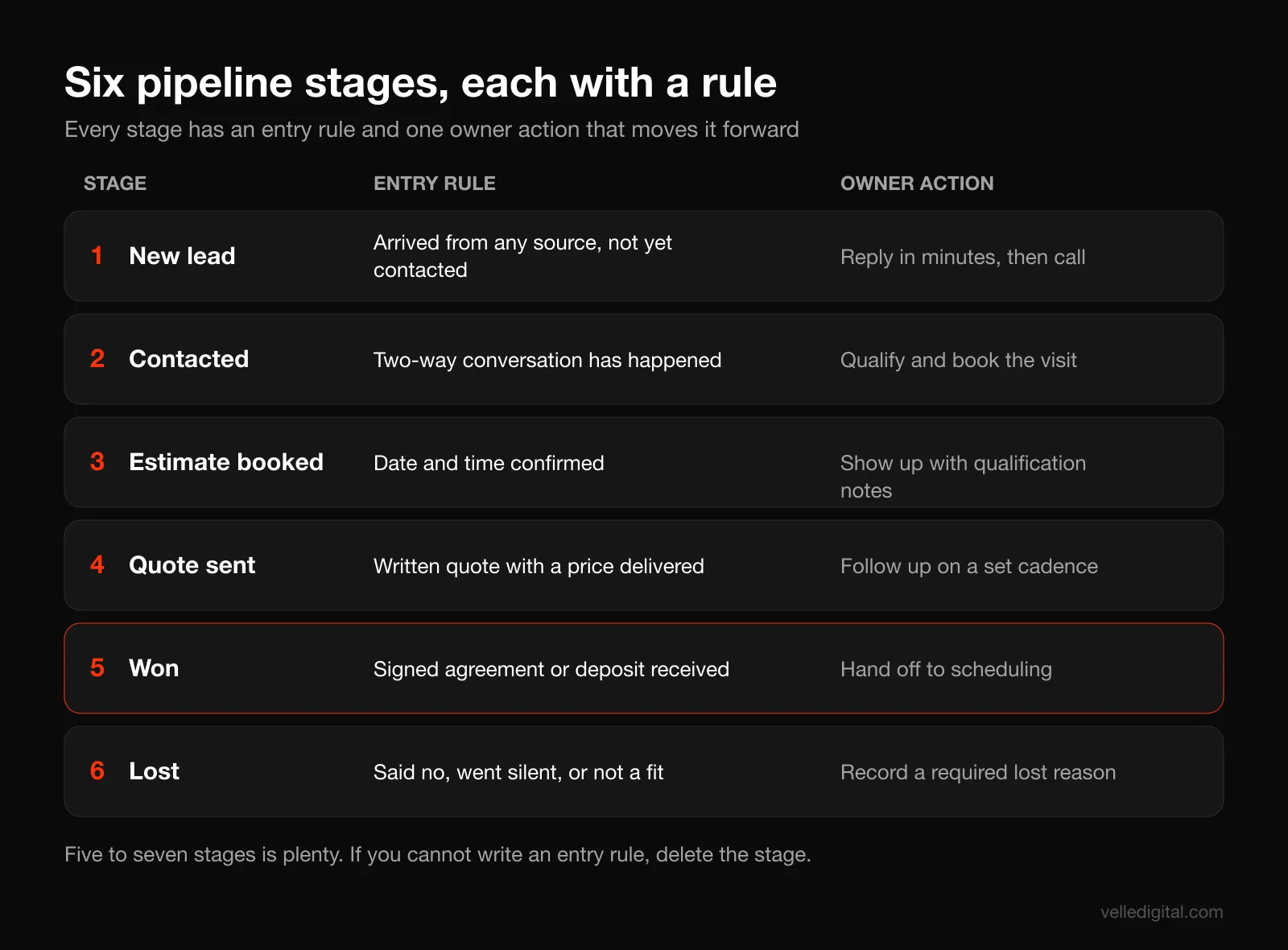
Here is a pipeline template for a local service business you can copy and adjust.
- New lead. Entry rule: a lead has arrived from any source and has not been contacted. Owner action: reply within minutes and attempt a call.
- Contacted. Entry rule: you have had a two-way conversation. Owner action: qualify (job type, location, timeline, budget range) and book the visit or call.
- Estimate booked. Entry rule: a date and time is confirmed. Owner action: show up prepared, with the notes from qualification.
- Quote sent. Entry rule: a written quote with a price has been delivered. Owner action: follow up on a set cadence until you get a yes or no.
- Won. Entry rule: signed agreement or deposit received. Owner action: hand off to scheduling or delivery.
- Lost. Entry rule: the prospect said no, went silent after the full follow-up cadence, or is not a fit. Owner action: record a lost reason.
For a business-to-business service with a longer cycle, a version might be: new lead, discovery booked, discovery done, proposal sent, negotiation, won, lost. Either way, each stage reflects something the customer has done or agreed to, not something you hope is happening. A few rules keep pipelines honest:
- Stages describe the deal, not your mood. "Hot" and "warm" are not stages.
- Lost reasons are required. Make it a dropdown: price, timing, chose a competitor, no response, not a fit, other. After three months, this field tells you more about your business than almost anything else in the CRM.
- Nurture is not a stage. "Maybe in spring" should be marked lost (reason: timing) with a follow-up task dated for spring. Leaving it in the active pipeline inflates your forecast.
- Separate pipelines for separate processes. One-off jobs and annual maintenance contracts may need different pipelines.
Step 8: Set required fields and data hygiene rules
Data quality decides whether your CRM becomes trusted or ignored. Require the minimum information needed to do the job and report on it, and nothing more. Every required field is friction, and friction makes people skip the CRM entirely. Nielsen Norman Group's form design guidance recommends eliminating as many optional fields as possible, and the same thinking applies inside a CRM.
Required fields for a contact:
- First name and last name (separate fields, so personalization works)
- At least one of phone or email
- Lead source (a dropdown, never free text)
- Owner (the person responsible)
- Consent status for marketing messages
Required fields for a deal:
- Service or job type (dropdown)
- Estimated value (a rough number early, corrected at quote stage)
- Stage and expected close date
- Lost reason (required only when the deal moves to lost)
Then write down a short set of hygiene rules and pin them where the team will see them. Here is a version you can copy.
CRM house rules: search before you create, so we never have duplicates. Every phone number in full international format. Every lead gets a source. Every open deal has a next task with a date. Every lost deal has a reason. If it is not in the CRM, it did not happen.
Settings that support those rules:
- Use dropdowns for anything you will report on. Free text produces "Facebook", "facebook", "FB" and "Insta ad" as four different sources.
- Standardize phone formats. Store numbers in the international format defined by the ITU E.164 numbering plan (for example, +17805551234). Deduplication, click-to-call and texting all get more reliable.
- Turn on duplicate detection for matching email or phone numbers.
- Flag open deals with no next task. Build a view for it and review it weekly.
- Lock down who can edit picklists. If anyone can add a new lead source, everyone will.
- Schedule a monthly cleanup. Twenty minutes to merge duplicates, fix missing sources and close dead deals.
Step 9: Track lead source properly
Lead source tracking is the reason many owners buy a CRM, and the thing most setups get wrong. If you do not know which channels produce paying customers (not just leads), you cannot decide where to spend your marketing budget.
Track two levels: original source (how this person first found you, captured automatically and never overwritten) and latest source (what brought them back most recently). Build a fixed list of fifteen or fewer, for example: Google Ads, Google organic, Google Business Profile, Meta ads, Instagram organic, Facebook organic, customer referral, partner referral, repeat customer, walk-in, email marketing, event, other.
Then capture source automatically wherever possible:
- Tag every link you control with UTM parameters. Google's documentation on collecting campaign data with custom URLs explains them: utm_source identifies the referrer (such as google or newsletter), utm_medium the marketing medium (such as cpc or email), and utm_campaign the specific campaign. Use them on ads, emails, social bios and QR codes.
- Pass UTMs into hidden form fields. Your website form should capture the UTM values and landing page in hidden fields, so they arrive in the CRM with the lead.
- Capture the Google click ID. If you run Google Ads, store the GCLID in a hidden field too, so you can send won deals back to Google later.
- Use tracking phone numbers for calls. Different numbers per channel, forwarding to the same line.
- Ask, as a backup. Add a "How did you hear about us?" dropdown to forms and your phone script. Self-reported source is imperfect, but it catches referrals and word of mouth that no tracking link will.
The payoff comes when you close the loop. Google Ads lets you import offline conversions, so a deal marked won in your CRM is reported back to the campaign that produced it. Google's help page on enhanced conversions for leads notes that advertisers who used first-party data such as emails and phone numbers alongside imported GCLIDs saw a median 10 percent increase in conversions compared with standard offline conversion imports. Sending back "this lead became a 9,000 dollar job" instead of "someone filled in a form" lets the platform optimize for customers, not form fills. Our Google Ads guide for small businesses covers the ad side of that setup.
Step 10: Build these automations first
Automation is where a CRM starts paying for itself, and where people get carried away. Build a few high-value automations, confirm they work, then add more. Start with these five, in order.
Automation 1: Instant lead reply. Trigger: a new lead is created from any source. Action: send a text and an email within a minute, confirming you received the request and offering a booking link, then create a call task due in five minutes. Our guide to speed to lead automation has the full cadence and scripts.
Example text: "Hi {first name}, thanks for reaching out to {business}. This is {owner name}. I will call you in the next few minutes. If now is not a good time, you can pick a slot here: {booking link}."
Automation 2: Lead assignment. Trigger: a new lead is created. Action: assign an owner by rule (service area, job type or round-robin) and notify them. Decision rule: if one person handles all leads, just notify them. With two or more, use round-robin unless territory or expertise matters.
Automation 3: Stale deal alert. Trigger: no activity on a deal for a set number of days (three for new leads, seven for quotes is a reasonable start). Action: create a task for the owner and, if it stays stale, notify a manager. This one catches more lost revenue than any report.
Automation 4: Quote follow-up. Trigger: a deal moves to quote sent. Action: schedule reminders for the owner (for example, day 2 call, day 5 email, day 10 text, day 20 final check-in), stopping when the deal is won or lost. For large or personal quotes, keep these as tasks for a person; automate the messages themselves only for small, standardized quotes.
Automation 5: Won deal handoff and review request. Trigger: a deal moves to won. Action: create the customer in your accounting or scheduling tool, notify the delivery team, and send a review request when the job is complete. Our guide on how to get more Google reviews covers timing and wording.
Common automation mistakes:
- Automating a process nobody agreed on. Get the manual version working first.
- No stop conditions. Every sequence should stop the moment the person replies, books or opts out.
- Too many notifications. Fifty alerts a day get muted. Only notify when a human needs to act.
- No documentation. Keep a list of each automation, its trigger and who maintains it.
Once these are stable, you can explore AI-assisted lead summaries or call notes, covered in our guide to AI automation for small business.
Step 11: Migrate from spreadsheets without making a mess
Importing everything as-is and planning to clean it later is how CRMs start out full of duplicates and junk. Later never comes. Clean first, import second.
- Gather every source. The main spreadsheet, old ones, email contacts, phone contacts, the accounting customer list, the business cards.
- Decide what is worth bringing. A reasonable cut: customers from the last few years, open leads and quotes, active partners. Long-dormant contacts with no marketing consent can stay in an archive file.
- Build one master sheet, one row per person, using the CRM's import template so columns match fields.
- Standardize. Split full names, put phones in international format, lowercase emails, and map free-text sources onto your fixed list.
- Remove duplicates. Sort by email, then phone, and merge rows for the same person, keeping the most complete record.
- Map to CRM objects. Contacts as contacts; open quotes as deals linked to them, with the right stage and value; notes as notes.
- Record consent honestly. If you have no record of how someone agreed to marketing, do not mark them subscribed.
- Test with 20 rows, check every field landed correctly, delete the test, then import the rest.
- Spot-check twenty random records against the source after the full import.
- Freeze the old spreadsheet. Make it read-only and rename it "ARCHIVE, do not edit." If people can keep using it, they will.
Tip: tell the team the cutover date in advance. From that date, new leads go in the CRM only.
Step 12: Get the team to actually use it
Adoption is the whole game. The most common reason a CRM fails is not the product. It is that the team keeps working the old way and the CRM becomes a place the owner updates on Fridays. What works, in our experience:
- Involve the users from Step 1. People support what they help build.
- Make the CRM the only place leads arrive. If leads hit a personal inbox first, the CRM will always be second.
- Answer "what is in it for me?" For a salesperson: no forgotten follow-ups and a clear call list. For a coordinator: no chasing people for updates. For the owner: a real forecast.
- Train on the five daily actions. Log a call, add a note, move a deal, set a task, find a contact. Advanced features can wait.
- Run your weekly meeting from the CRM. Put the pipeline on screen. If a deal is not in the CRM, it does not get discussed. This habit does more for adoption than any training.
- Name an owner. One person maintains fields, automations and the monthly cleanup, often the office manager rather than the owner.
- Remove friction ruthlessly. If people say something takes too many clicks, believe them and fix it.
Privacy and consent: PIPEDA, provincial laws and CASL
A CRM is a database of personal information, so privacy law applies to it. This is not legal advice, and complex situations deserve a lawyer, but every small business should know the basics.
In Canada, the federal private-sector privacy law is the Personal Information Protection and Electronic Documents Act. The Office of the Privacy Commissioner of Canada has a plain-language overview of PIPEDA worth reading once. Provinces matter too: the OPC explains that Alberta, British Columbia and Quebec have private-sector laws deemed substantially similar to PIPEDA, which apply instead of PIPEDA for organizations operating entirely within those provinces unless information crosses borders. In Alberta, that is the Personal Information Protection Act (PIPA), and in British Columbia, where we are based, it is a separate provincial law with the same name. The practical requirements overlap heavily.
PIPEDA rests on ten fair information principles. Several translate directly into CRM settings:
- Accountability. Name the person responsible for personal information. Usually the CRM owner.
- Identifying purposes and consent. Your forms and privacy policy should say why you collect information, and you need consent for those purposes.
- Limiting collection. Collect only what you need, which lines up with lean required fields in Step 8.
- Limiting retention. Set a rule (for example, archive or delete lost leads after a period with no activity) and apply it in the monthly cleanup.
- Accuracy. Your hygiene rules do most of this work.
- Individual access. If someone asks what you hold about them, you should be able to find and provide it. Easy, as long as all the data is actually in the CRM.
Practical safeguards for any CRM:
- Turn on multifactor authentication for every user. The Cybersecurity and Infrastructure Security Agency's guidance on multifactor authentication explains why a second verification step makes accounts much harder to break into.
- Use roles and permissions. Not everyone needs to export the full database or delete records.
- Remove access the day someone leaves. Put it on your offboarding checklist.
- Know where your data is stored. Ask the vendor about hosting location and subprocessors.
- Have a breach plan. The OPC's guidance on privacy breaches at your business says organizations under PIPEDA must report breaches that pose a real risk of significant harm, notify affected individuals, and keep records of all breaches.
Consent for marketing messages
Canada's Anti-Spam Legislation governs commercial electronic messages such as marketing emails and texts. The Government of Canada's CASL resource page is the place to start. In CRM terms:
- Store consent as data. Fields for consent type (express or implied), date, source and the wording the person agreed to.
- Never assume. Importing old contacts does not give you consent to send them a newsletter. Mark unknown consent as unknown.
- Sync unsubscribes both ways between your email tool and the CRM, and test it.
- Keep transactional and marketing separate. Replying to a quote request is not the same as adding someone to a promotion.
If you also market into the United States, the rules differ, so check each country you sell into. Our email marketing guide for small businesses covers list consent in more detail.
Your 30 day CRM rollout plan
You can go from decision to a working, trusted CRM in about a month if you keep scope tight. Adjust the dates to your team, but keep the order.
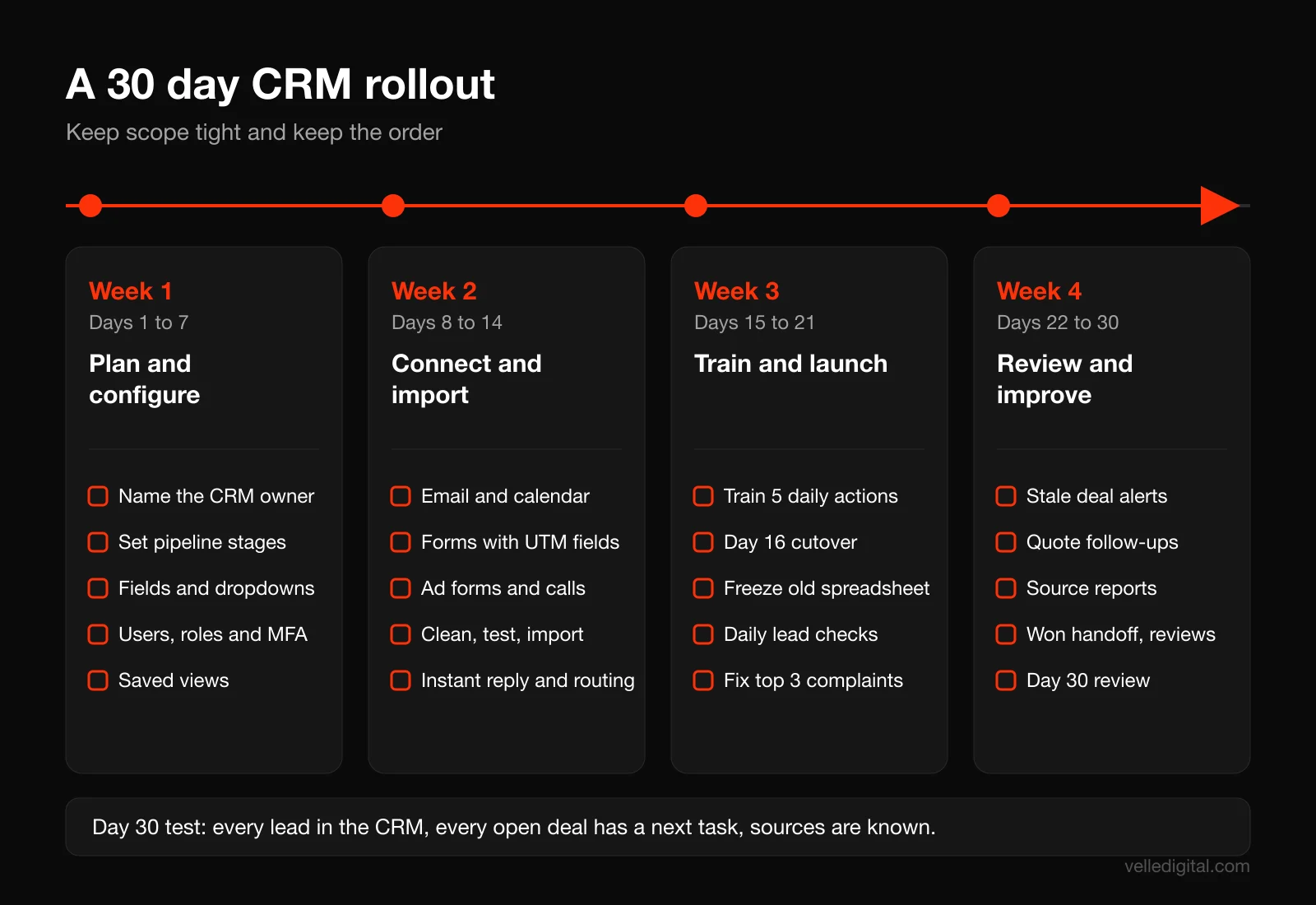
Week 1: Plan and configure (days 1 to 7)
- Day 1: Name the CRM owner. Review the Step 1 lead-to-customer map with the team.
- Day 2: Finalize pipeline stages with entry rules and owner actions.
- Day 3: Create custom fields, dropdowns and required fields. Write the house rules.
- Day 4: Set up users, roles, permissions and multifactor authentication.
- Day 5: Build saved views: "my open deals," "deals with no next task," "new leads today."
- Days 6 and 7: Buffer. Something will take longer than expected.
Week 2: Connect and import (days 8 to 14)
- Day 8: Connect email and calendar for every user.
- Day 9: Connect website forms with hidden UTM and click ID fields. Submit test leads from every form.
- Day 10: Connect ad lead forms and call tracking. Confirm the lead source lands correctly for each.
- Day 11: Clean the spreadsheet data.
- Day 12: Test import of 20 rows and fix mapping.
- Day 13: Full import and spot-check.
- Day 14: Build the instant reply and assignment automations. Test them with real phones.
Week 3: Train and launch (days 15 to 21)
- Day 15: One-hour team training on the five daily actions. Record it.
- Day 16: Cutover day. All new leads go into the CRM only. Freeze the old spreadsheet.
- Days 17 to 21: The CRM owner checks every new lead daily and helps anyone stuck. End the week with a 15-minute check-in and fix the top three complaints.
Week 4: Review and improve (days 22 to 30)
- Day 22: Build the stale deal and quote follow-up automations.
- Day 23: Run your first weekly pipeline meeting from the CRM screen.
- Day 24: Build reports: leads by source, won deals by source, pipeline value by stage, win rate.
- Day 25: Build the won handoff and review request automation.
- Days 26 to 29: Fix friction. Remove fields nobody fills in, simplify views, adjust timing.
- Day 30: Are all leads in the CRM? Does every open deal have a next task? Can you say where last month's customers came from? If yes, rollout is done.
After day 30, keep the monthly cleanup and a quarterly review of stages, fields and automations. A CRM should change as your business does.
Common CRM mistakes small businesses make
- Buying on features, not fit. The longest feature list is irrelevant if daily actions are clunky for your team.
- Comparing sticker prices instead of three-year totals at the tier you actually need.
- Skipping the export test, then discovering your history is trapped when you want to leave.
- Too many stages and required fields, so people stop logging leads at all.
- Importing dirty data, so nobody trusts the system from day one.
- Automating too much, too soon, before the basic process works.
- Letting the old spreadsheet survive "just in case," which guarantees it stays the real system.
- Leadership not using it. If the owner asks for updates by text instead of looking at the CRM, the team learns the CRM is optional.
CRM for small business setup checklist
Use this before you call the rollout finished.
Choosing:
- Lead-to-customer process mapped with the team
- Must-have list of 12 items or fewer
- Three-year total cost calculated at the right tier, including add-ons and setup
- Every required integration tested during the trial, not just promised
- Full data export tested, including notes, activity and relationships
- Two-week trial run with real users and scored
Setting up:
- Five to seven pipeline stages, each with an entry rule and owner action
- Lean required fields; lead source, job type and lost reason are dropdowns
- Phone numbers in international format; duplicate detection on
- UTM parameters on every link; hidden fields on every form; GCLID captured if you run Google Ads
- Five starter automations built, tested and documented
- Data cleaned, test-imported, fully imported and spot-checked
- Old spreadsheet archived and read-only
Running:
- Named CRM owner with time set aside each week
- Multifactor authentication on for every user; roles and permissions set
- Consent fields in place; unsubscribes sync both ways
- Retention rule written and part of the monthly cleanup
- Weekly pipeline meeting run from the CRM
Frequently asked questions
What is the best CRM for a small business?
There is no single best CRM, and anyone who names one without knowing your process is guessing or earning an affiliate commission. The best one for you covers your must-haves at a sensible three-year cost, integrates with your tools, lets you export all your data, and is the one your team preferred during a trial.
How much does a CRM cost for a small business?
Off-the-shelf CRMs range from free plans with tight limits to well over a hundred dollars per user per month at advanced tiers. The advertised price is rarely what you pay, because automation, reporting and texting often sit in higher tiers or add-ons. Compare three-year totals including seats, add-ons, integrations, setup and admin time.
Is a spreadsheet good enough instead of a CRM?
For a solo operator with few leads and reliable follow-up habits, a spreadsheet can work for a while. Once leads come from several channels, more than one person handles them, or you need to know which marketing produces customers, it starts costing you through missed follow-ups and blind spending.
How long does it take to set up a CRM?
A focused small business can have a working, trusted CRM in about 30 days: a week to configure, a week to connect and import, a week to train and launch, and a week to review. Larger teams, messy data or a custom build take longer, and data cleanliness is usually the biggest variable.
When should a small business build a custom CRM?
Consider custom when off-the-shelf products would cover less than about 80 percent of your process, when you are paying for several add-ons and workarounds, when per-seat pricing gets expensive for a large team that needs light access, or when you need integrations that have no connector. An off-the-shelf core with a small custom layer is often the sensible middle ground.
Does PIPEDA apply to my CRM?
If you collect, use or disclose personal information in commercial activity in Canada, PIPEDA or a substantially similar provincial law applies to your CRM data. Alberta, British Columbia and Quebec have their own private-sector laws that apply instead in many cases. The basics are the same either way: collect only what you need, get consent, protect it and do not keep it longer than necessary.
How do I get my team to use the CRM?
Involve them in designing the pipeline, make the CRM the only place leads arrive, train on five daily actions rather than every feature, and run your weekly meeting from the CRM screen. Name one owner and remove friction whenever someone complains.
Ready to set up a CRM that your team will actually use?
A CRM is only as good as the process and habits inside it, and the decisions you make in the first month shape everything after. If you want help choosing, configuring or migrating, or you think your workflow needs something built around it, take a look at our CRM setup and automation service, or book a call and we will map your lead-to-customer process with you and tell you honestly whether off the shelf or custom is the better fit.